The Rundown AI / Guides / General / Use Replit’s New Tasks Feature To Improve Your Site Faster
Use Replit’s New Tasks Feature To Improve Your Site Faster

Use Replit’s New Tasks Feature To Improve Your Site Faster

Try Text

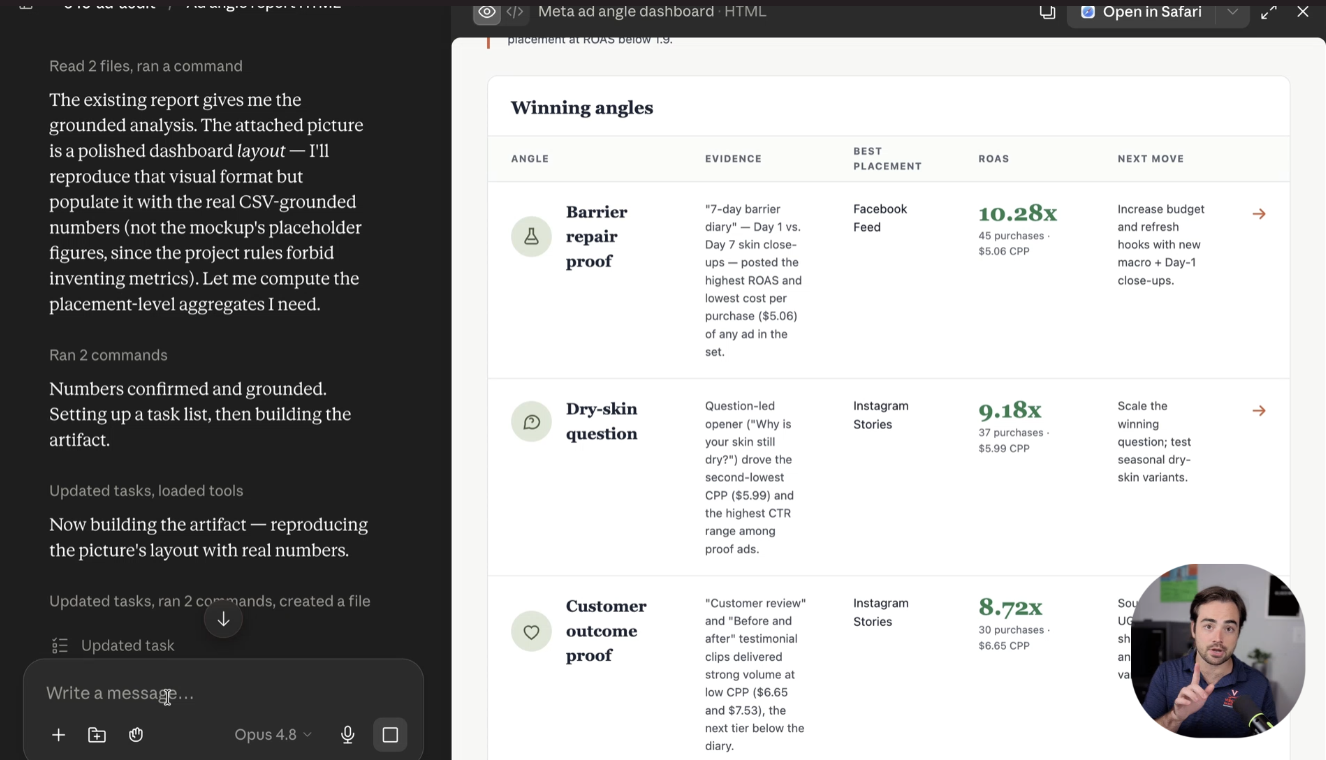
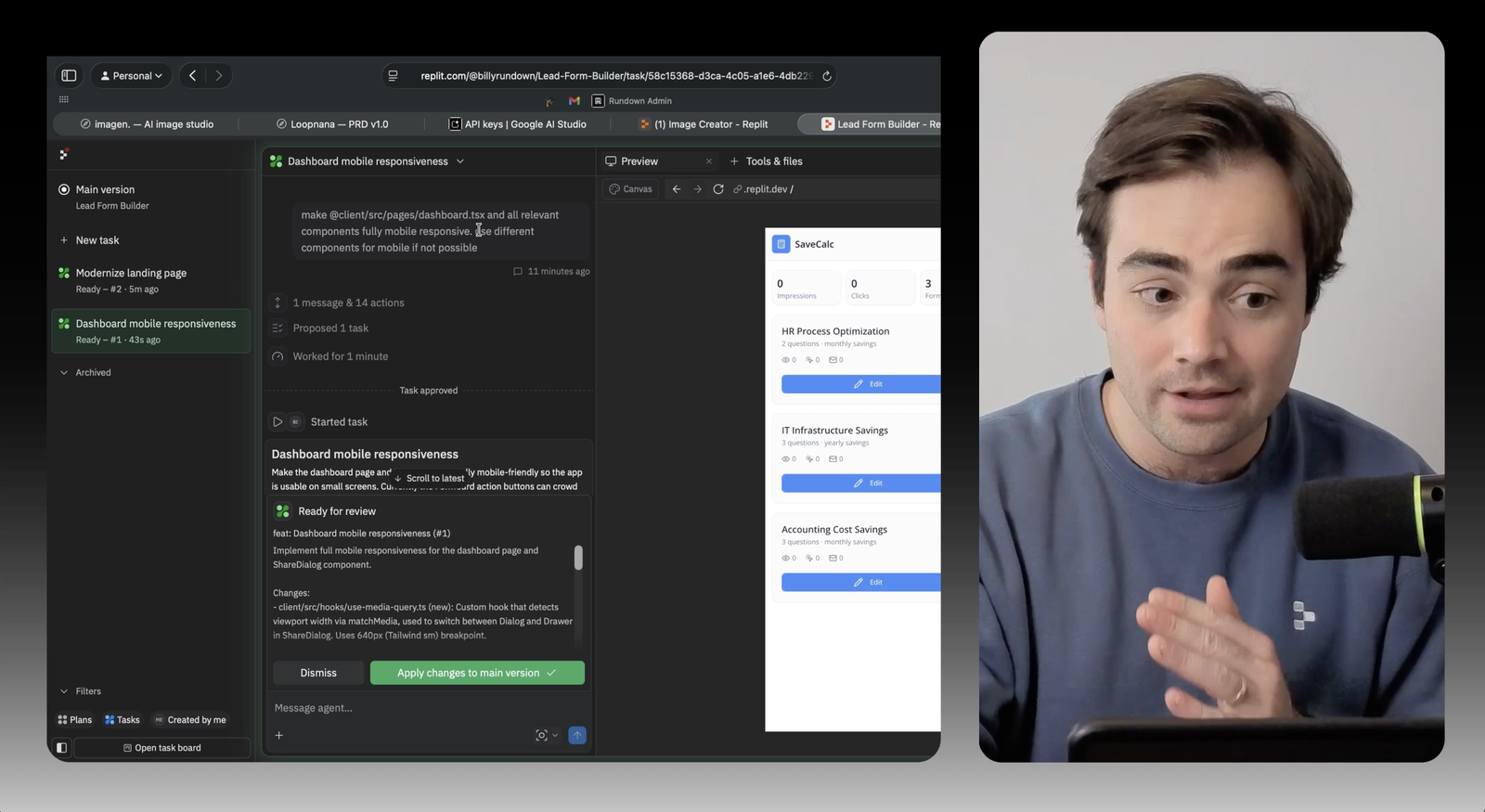
The Rundown In this guide, you will learn how to use Replit's new Tasks feature to improve an existing site without messing up your already working app. Parallel tasks make it way easier to avoid doom loops, keep isolated fixes from piling on top of each other, and make real progress on your app. Who This Is Useful For Anyone who's intimidated by using Git for version control  and wants a simpler way to review and merge isolated changes People who get into doom loops when they're vibe coding  and need a cleaner way to make progress without breaking what already works Founders, freelancers, and operators  who want to improve one part of their app at a time without juggling a bunch of conflicting edits What You Will Build You'll set up parallel sub-agents inside Replit that each work on a focused improvement to your website or app. Then you'll review the output in separate preview tabs and merge the good changes back into your main version. What You Need A  Replit  account At least the Replit Core plan to try Tasks right now An existing app to improve, or a clear app idea if you're starting from scratch Step 1 Start in Plan Mode Go to  replit.com . If you're starting from scratch, drop in your app idea and hit  Plan  first. If you already have an app, open that instead and review the plan Replit generates before you start building. The plan is useful because it shows you how Replit is thinking about the work. It gives you a list of tasks, what should not be touched, and what "done" looks like before you start changing code. Pro tip:  Take a second to actually read the plan. In our test, it was one of the most useful parts because it clearly defined the tasks and the finish line. Step 2 Create Your First Task Once you're in your Replit project, click the  plus button  on the far left sidebar. It should pop open the task menu. This is where you can create a separate task for one focused improvement. A strong first use case is mobile optimization. We used this prompt: Make this dashboard and all relevant components fully mobile responsive. Use different components for mobile if not possible. That last line matters. Sometimes components just do not collapse nicely on smaller screens. Telling Replit it can use different mobile components gives it more room to actually solve the problem instead of just squeezing the same layout into a phone screen. Step 3 Queue a Second Task in Parallel While the first task is planning, queue a second one in parallel. This can be something like modernizing the landing page, cleaning up the nav bar, or fixing a bug. This is the real value of Tasks. Instead of piling everything into one thread and hoping the agent keeps track of it all, you split the work into isolated jobs that can run separately. Pro tip:  Keep each task narrow. "Modernize the landing page" is okay. "Redesign the whole app, fix three bugs, and improve onboarding" is how you get back into a doom loop. Step 4 Review Each Task Before You Merge Let each task generate its own plan, then start them. Replit treats them like mini agents with separate previews, so you can inspect the work without messing up your main app. When a task finishes it will turn green. Click into it and open the preview tab to review the result. In our test, the mobile responsiveness task was the clear win. The landing page refresh looked better too, but it also showed why vague prompts usually need a second pass. Step 5 Apply the Good Changes When you find a task you like, click  Apply Changes to Main Version  to merge that updated code back into your production app. This is the part that makes the whole workflow safer. You are not committing to every idea the agent had. You are reviewing each isolated result, keeping the good work, and leaving the rest behind. Replit Core vs Pro We tested this on Replit Core, which is $20/month. But that only applies through the end of March. After that, the Tasks feature will only be available on the Replit Pro plan, which is $100/month. So if you're already on Core and this feature is available in your account, now is the time to try it. Going Further If you want to orchestrate like a pro, start by putting your main agent into plan mode and telling it all the improvements you want to make to your app. It will generate something close to a PRD. Instead of telling the main agent to go do all of it, break that plan into separate parallel tasks. Good candidates for Tasks are mobile responsiveness, UI cleanup, bug fixes, onboarding flows, and landing page sections. This works especially well if you're trying to avoid spaghetti code and make steady progress without touching everything at once.

Save 15% on Thoughtly by joining The Runway University

Through our vast network of over 100 partnerships with major AI companies, we also offer University members free access or major discounts to the many popular AI tools along with AI certified courses, daily guides on AI tools and many more.

Tools

No items found.
AI training for the future of work.

Get access to all our AI certificate courses, hundreds of real-world AI use cases, live expert-led workshops, an exclusive network of AI early adopters, and more.

General

Coding