Never Lose Your Vibe Coding Progress Again With Git
Try Text
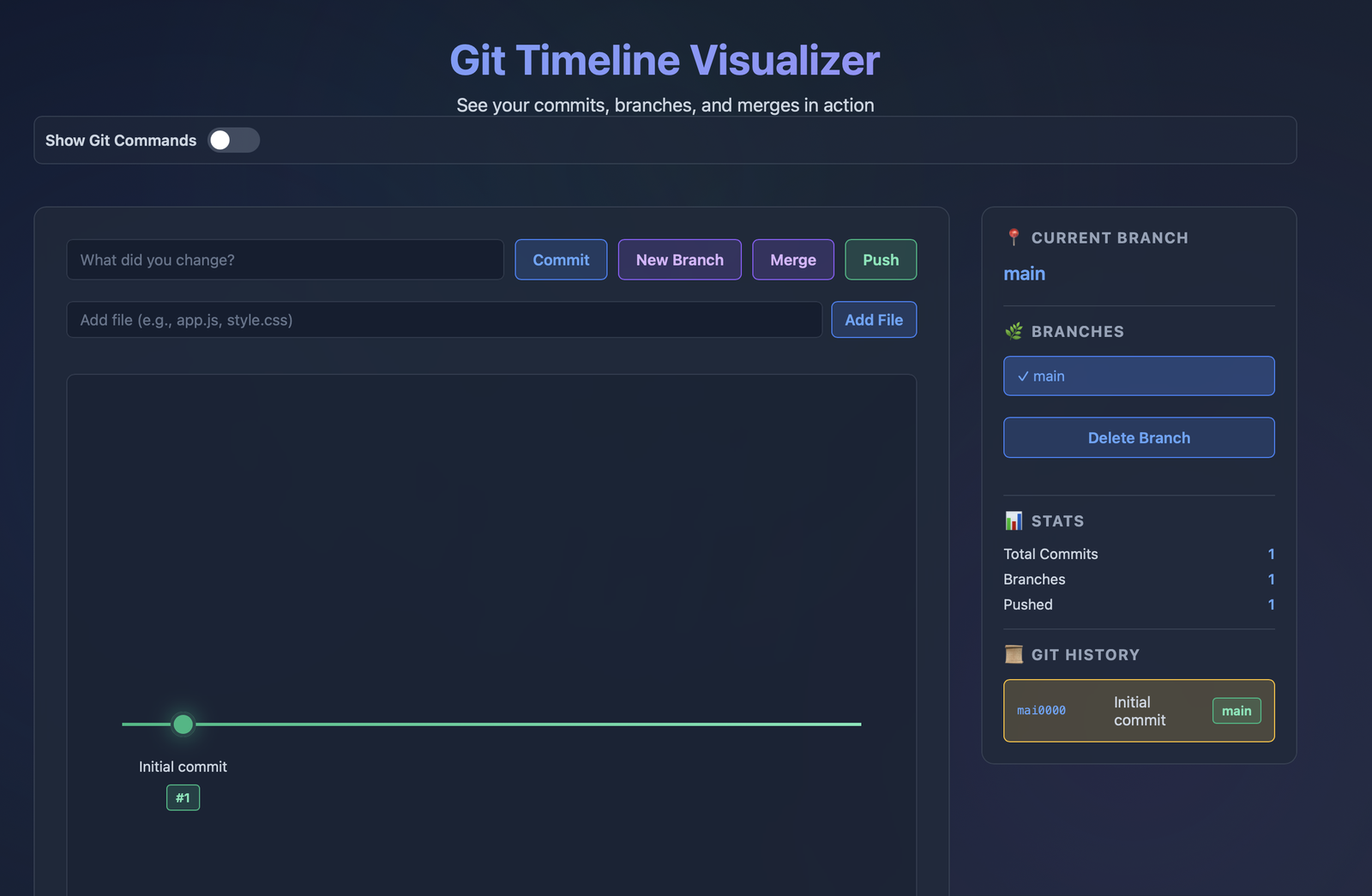
The Rundown In this guide you will learn how to save your vibe coding progress with Git so that you never lose your work again. We will learn eight practical git commands and write our first git commit. Who This Is Useful For Vibe coders who skipped CS class Claude code users who want to save tokens Cursor users who want to save their progress What You Will Build What You Need to Get Started A computer with terminal/command line access Text editor or IDE (we use Cursor) Installation & Setup Step 1 Install Git Head to git-scm.com . If you’re on Windows you can download the installer. If you’re on Mac you will need to follow the instructions to install it with Homebrew . Don’t worry, Homebrew and Git are both safe, open source libraries that have been around for decades. You can verify the installation by pasting git --version into your terminal and hitting return . Step 2 Add Git to Your Project Open your code editor and create a new folder with a basic html file in it. You can download our example one if you’d like. Open up a terminal session in your code editor. Type in git init and hit return. Now you can track your changes in this repository. 💡Pro tip: Ask your AI coding assistant to create a README.md that explains your project. This will come in handy if you upload this to Github. Step 3 Write Your First Commit A commit is a snapshot of your code at a specific moment. Each commit has: A unique ID (looks like abc1234def5678 ) A message (describing what changed) An author (your name) A timestamp Before we write our commit, we need to add our changes to the commit. To save changes: git add . Now let’s write a commit: git commit -m 'first commit!' Now our changes are saved and added to our main branch. Step 4 Create a Feature Branch When you’re coding it’s important to create new branches for new features. This practice alone will save you so many headaches and improve your coding agent’s context by a lot. Create a new branch called “feature-1”. git checkout -b feature-1 Now any commits you make will be saved to the feature-1 branch. To see a list of your branches and your current branch: git branch To switch branches: git checkout [branch name] Step 5 Add a Feature to Your Main Branch Now let’s save that new progress to our main branch. First, add some changes to a file in your new branch. Save them with a commit. Switch to your main branch with git checkout main . To merge branches: git merge feature-1 Now your changes are saved to your main branch. 💡Pro tip: Every commit and merge has a unique identifier that you can see with git log. To undo a merge you can use git reset [commit hash]. Step 6 Make AI Use Git for You When you start a new project add this simple prompt into your context file. For example, you’d add this to CLAUDE.md if you are using Claude code. # Git Rules 1. Create feature branch: `git checkout -b feature-[name]` 2. Commit after each logical change: `git commit -m "Add [what you did]"` 3. When done, ask: "Ready to merge feature-[name] into main?" 4. Wait for approval before merging 5. Never commit directly to main Going Further To save your code to Github install it to your terminal here . Then login with gh auth login Create a new repository on github.com . Copy these commands into your terminal and hit return . Now anytime you want to save a branch in the cloud, just use this command git push origin [branch name]
Tools

AI training for the future of work.
Get access to all our AI certificate courses, hundreds of real-world AI use cases, live expert-led workshops, an exclusive network of AI early adopters, and more.