Transcribe Any Video for Free With This Local AI
Try Text
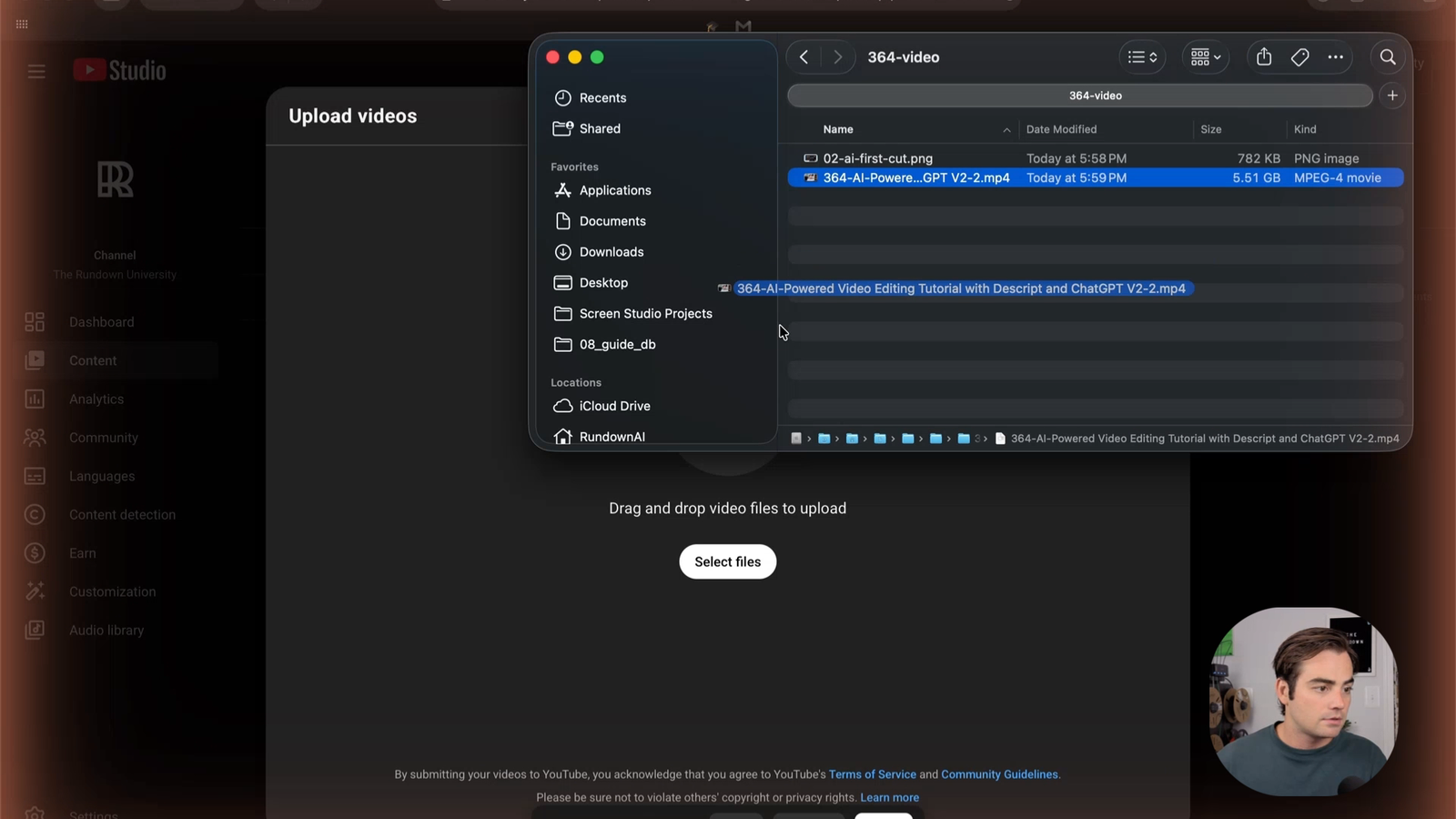
The Rundown In this guide, you will learn how to translate and transcribe any video file for free by running an AI model locally on your computer. No more uploading videos to sketchy, free transcription sites. Knock out a transcript in two minutes from the comfort of your own terminal! Who This Is Useful For Video or podcast editors Privacy-conscious meeting recorders Anyone with hours of content to transcribe or translate What You Will Build A local transcription setup on your computer that lets you transcribe any video or audio file with a single terminal command. You'll also learn how to translate non-English audio to English automatically. Once it's set up, you can use it as much as you want. It's a one-time install, then it's free forever. What You Need to Get Started A Mac or Windows computer Python 3 (most Macs already have it) Homebrew (Mac) or Chocolatey (Windows) for installing ffmpeg A video or audio file you want to transcribe About 5 minutes for the initial setup Step 1 Install ffmpeg and Whisper Open Terminal. On Mac, hit Cmd + Space , type "Terminal", hit Enter. First, install ffmpeg. This is a command-line video tool that Whisper needs to read your files. It's pretty standard to have on your computer, nothing crazy. Mac: brew install ffmpeg If you don't have Homebrew installed, you can ask Claude or ChatGPT how to set that up on your device. It's a one-liner. Windows: choco install ffmpeg Now, check that you have Python installed. On Mac, type: python3 --version If you see a version number, you're good. If not, ask Claude or ChatGPT how to install Python 3 on your device. Now install Whisper: pip3 install -U openai-whisper That's it. Two install commands and you're done. You'll never have to run these again. Pro tip: If you run into issues where pip3 isn't recognized, try python3 -m pip install -U openai-whisper instead. And if you want to double-check the install commands for your specific operating system, the Whisper GitHub page has everything. Step 2 Transcribe Your First File Now for the fun part. Grab a video file you want to transcribe. Right-click it in Finder and copy the file path. You're going to need that for your Whisper command. Run this in Terminal: python3 -m whisper "[your file path]" --model base For example, if your video is in Downloads: python3 -m whisper "/Users/you/Downloads/my-video.mp4" --model base Whisper will detect the language automatically (which is cool), and then start pulling all the words along with timestamps right in your terminal. A gigabyte-sized, seven-minute video takes about two minutes to transcribe on a MacBook Pro. When it's done, you'll see several output files appear in whatever folder you ran the command from: .txt for a plain text transcript .srt for closed captions (this is what you'd upload to YouTube or import into your editor) .vtt , .tsv , and .json for other formats If you want to control where the files go, add --output_dir and --output_format : python3 -m whisper "[your file]" --model base --output_dir "/Users/you/Downloads" --output_format txt We're using the base model here. There are a few different sizes you can choose from, and you can see how much RAM your computer needs for each on the GitHub page . You can go all the way up to turbo if you want, but base is the sweet spot for speed and accuracy. Pro tip: That .srt file has timestamps baked in and imports directly into Premiere, DaVinci Resolve, Final Cut, and most other editors. If you're using the transcript for captions, grab that one instead of the .txt . Step 3 Translate Non-English Audio Whisper can translate most non-English audio. Run the same command as before on a video or audio file and add the flag --task translate to the end. python3 -m whisper "[your file path]" --model base --task translate Without the --task translate flag, Whisper will transcribe in the original language. With it, you get an English translation. Just like that, you've got a little translation bot running on your laptop. Going Further If you've got a folder of recordings you need to process, you can batch the whole thing in one line. Just open Terminal, cd into the folder, and run this: for f in *.mp4; do python3 -m whisper "$f" --model base; done Every file in the folder gets transcribed. Walk away, come back to a folder full of transcripts.
Tools

AI training for the future of work.
Get access to all our AI certificate courses, hundreds of real-world AI use cases, live expert-led workshops, an exclusive network of AI early adopters, and more.