How To Turn One Thumbnail Into Five Different Social Posts
Try Text
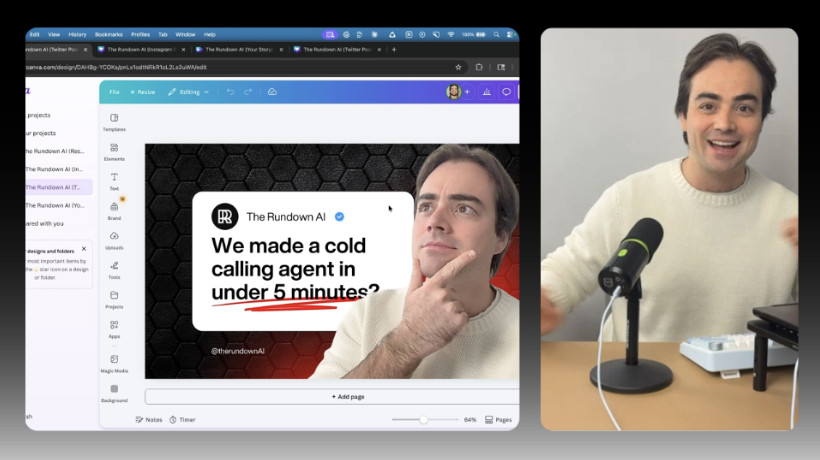
The Rundown In this guide, you will build a YouTube thumbnail from scratch in Canva, then use the AI resize feature to instantly duplicate it into every social media format with AI handling the layout for each size. Who This Is Useful For Content creators who post across multiple platforms and spend way too long manually resizing the same graphic for each one Marketing teams managing brand presence on 5+ social channels who need every post formatted correctly Freelancers and agencies who deliver assets to clients in multiple formats and want to stop billing hours for resize work What You Will Build A YouTube thumbnail built from a Canva template with your own photo, then resized into every major social platform format. All sitting in one folder, ready to post. What You Need to Get Started Canva Pro account ($15/month) Step 1 Make a YouTube Thumbnail From a Template Go to the Canva home screen and click Create . Search for "thumbnail" and click YouTube Thumbnail . That opens a new project at the right dimensions. In the left sidebar, browse the Templates section. Find one that fits the vibe you're going for. Click it and the template loads into your canvas. Update the text with your own headline and subtitle. Swap out whatever placeholder text the template came with. Next, upload a photo of yourself. You can take a quick one with the Photo Booth app on Mac or just snap one with your phone camera. You can do a reaction face like in the thumbnail, or just smile like a normal person. Go to the Upload section in the left sidebar and drag your photo in. Once it's uploaded, drag it over the person already in the template. Canva swaps it right in. Click on your photo and use the Canva AI background removal tool. It cuts you out clean and blends you into the template's design. Step 2 Resize Into Every Social Format Go to the top bar and click Resize . You'll see a list of all the different social media formats available. Check all the ones you want: Twitter Post, Facebook Post, Facebook Story, Instagram Post, Instagram Story, etc. Then click Copy & Resize . Canva will duplicate your project, resize it and use AI to lay out all the different elements. Your text, your photo and the background for each format. You can see each of them in one folder in your projects sidebar. Now you can click each one and then Share > Download to export the posts. Going Further If you get tired of Canva thumbnail templates you can make your own then convert them into Canva projects. We used Nano Banana Pro to create a thumbnail, upload it into Canva then use the color dropper tool (only works in Chrome) to recreate the background and text. You can use the AI background remover + cropping to pull in any AI generated clip art or people into the project. Now the AI resizing will work as if it were a Canva template!
Tools

AI training for the future of work.
Get access to all our AI certificate courses, hundreds of real-world AI use cases, live expert-led workshops, an exclusive network of AI early adopters, and more.