The Rundown AI / Guides / General / How To Generate a TV Commercial With AI
How To Generate a TV Commercial With AI

How To Generate a TV Commercial With AI

Try Text

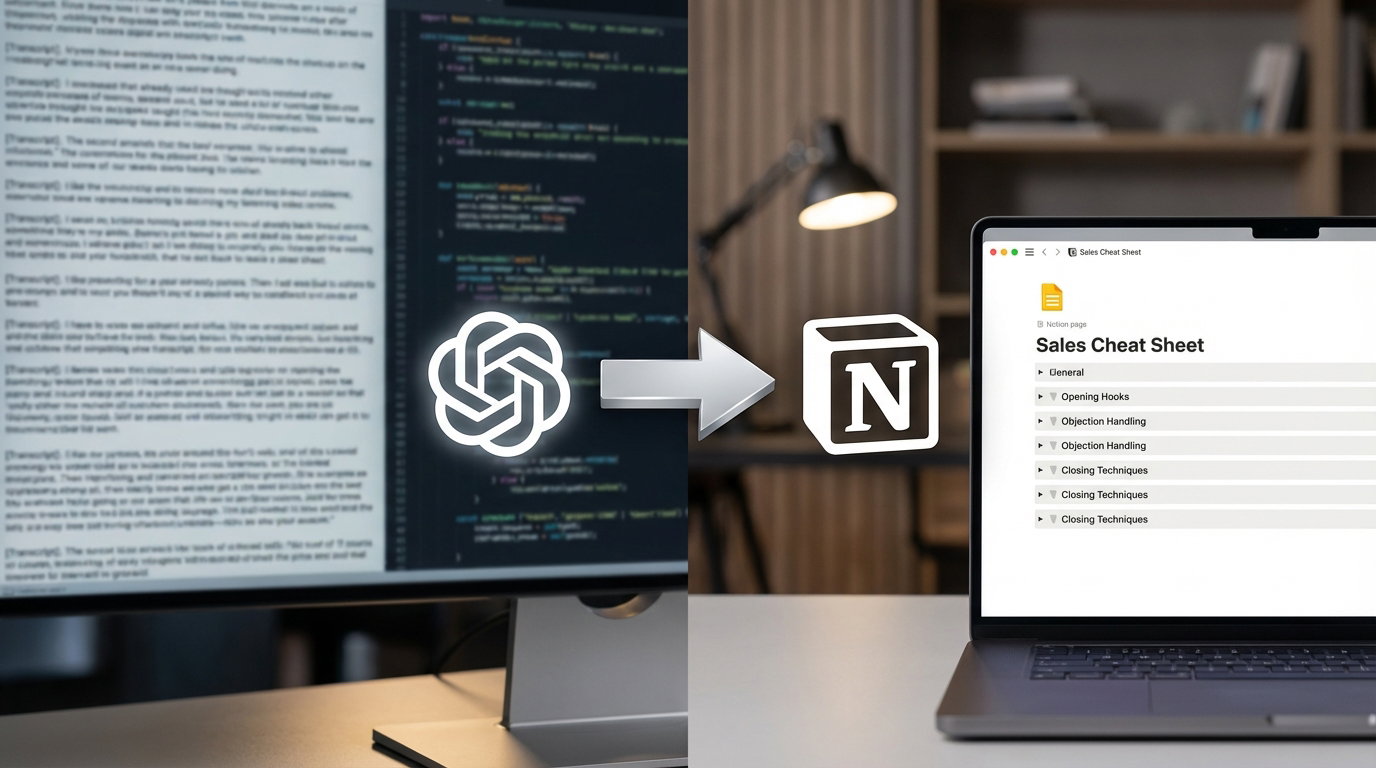
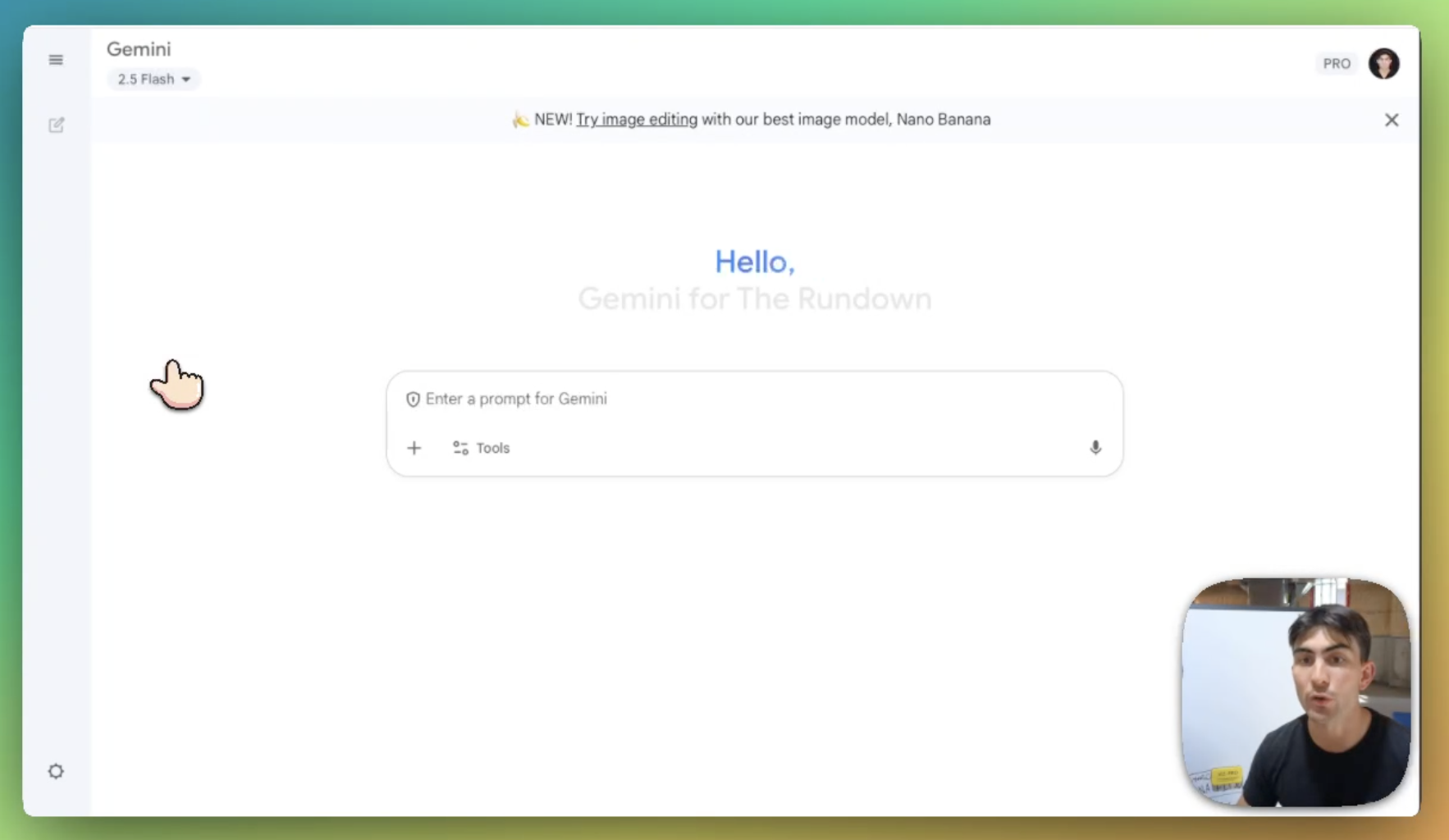
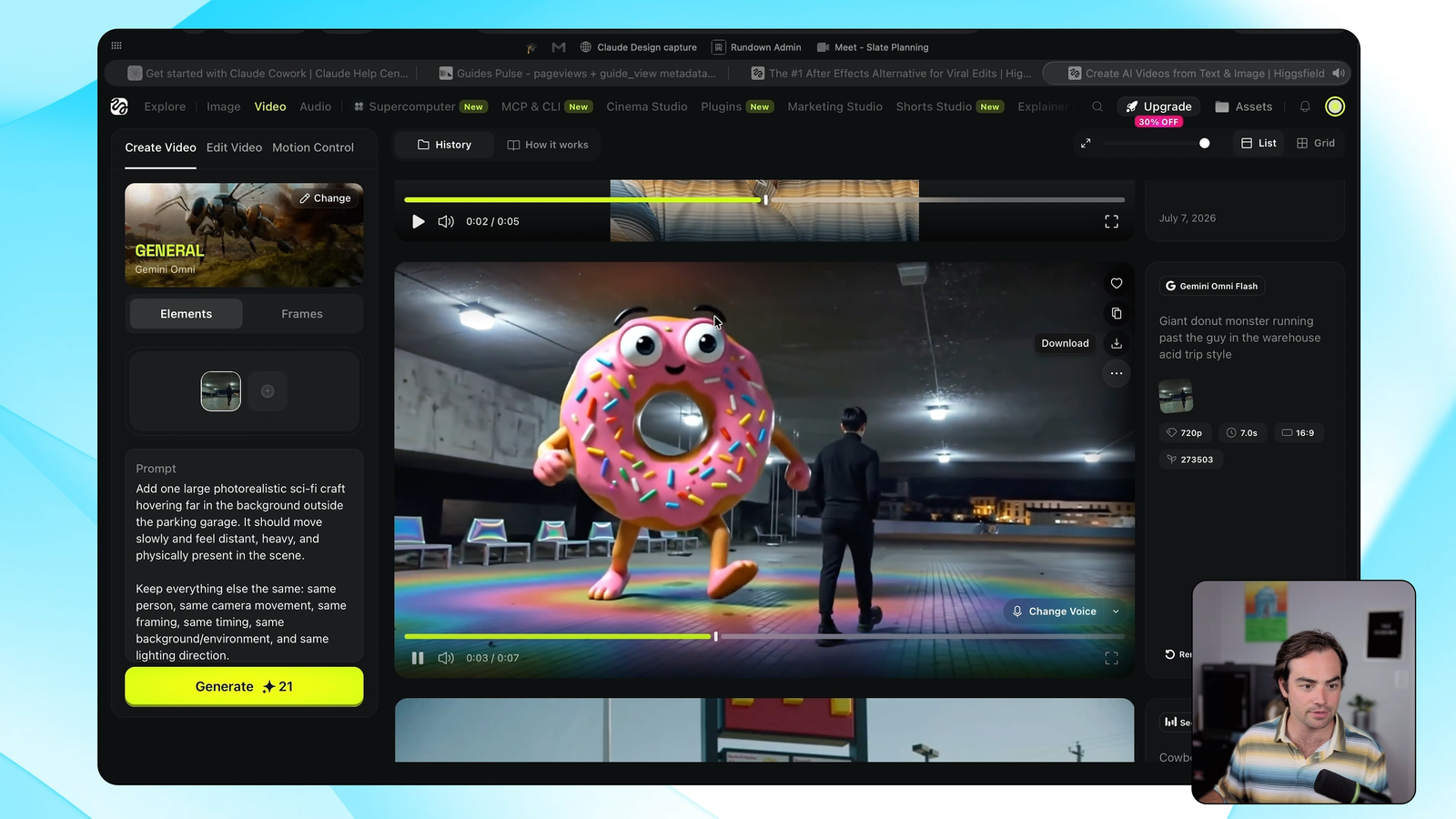
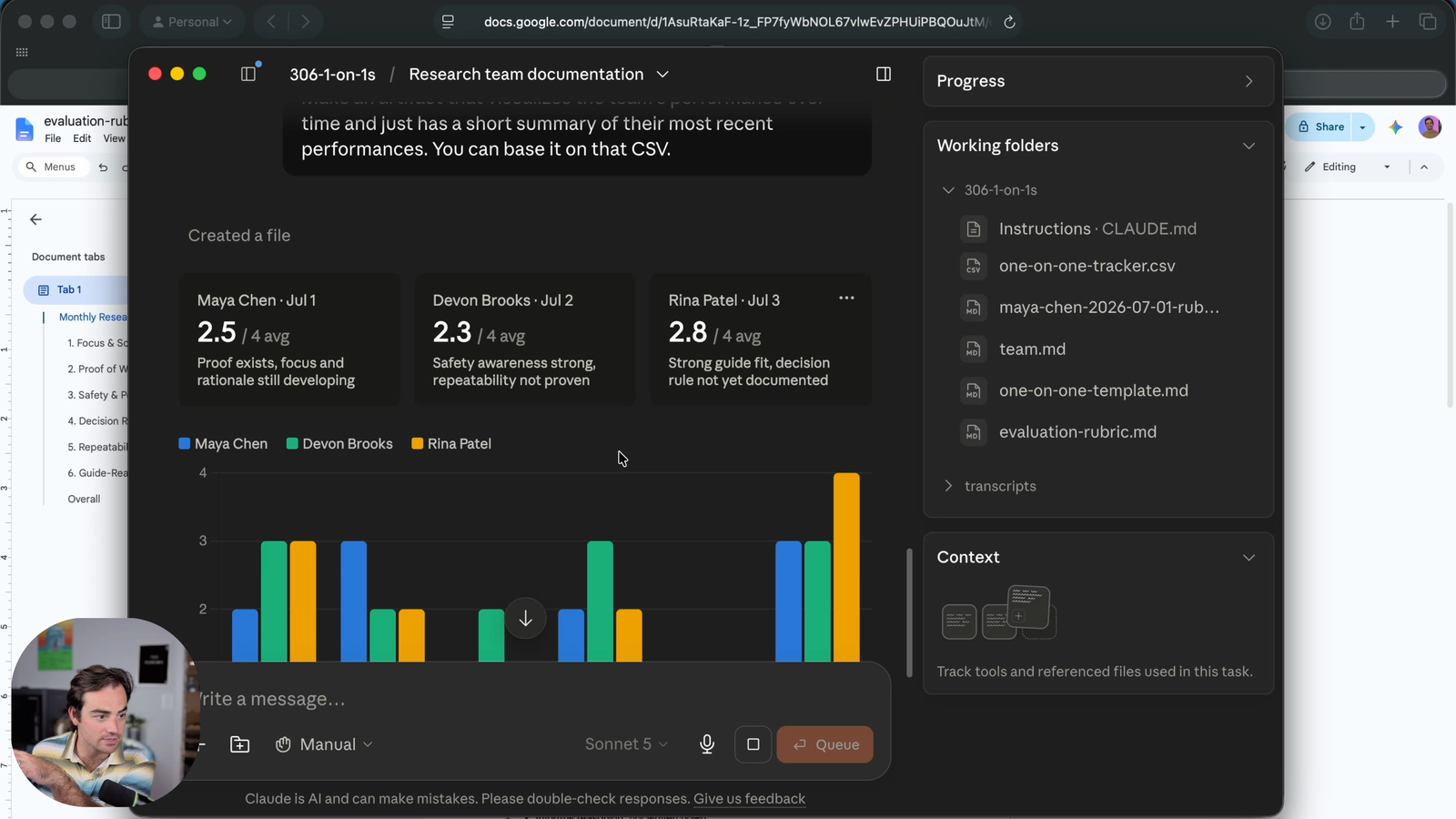
The Rundown In this guide, you'll learn how to create a professional-looking TV commercial using AI. Don’t worry, you can use this same system for Youtube ads, Facebook ads or whatever you need! The best part? You only need $9 software and around 20 minutes of time. Who This Is Useful For Small business owners  who want to create polished video ads without hiring a production team Content creators and marketers  looking to prototype commercial concepts quickly and cheaply AI enthusiasts  who want to explore the latest video generation tools in a hands-on, practical workflow What You Will Build What You Need to Get Started Higgsfield.ai  basic plan or higher ($9+) CapCut desktop app (free) A TV commercial idea Step 1 Go to  Gemini.google.com  and tell it your idea. Ask for a 20-second script with exactly two scenes. Review the script and revise as needed. If you have a custom voiceover, sound effects, or music in mind, tell Gemini to include that in the script. Next, tell Gemini to generate prompts for the start frame and end frame of each scene. Tell it to use photography and film terms to keep a consistent aesthetic. 💡Pro tip: Use photography terms to describe the camera and the angles of your frames. Try out phrases like: Anamorphic Lens, Macro Lens, 14mm Wide Angle, hero shot or dutch angle. Step 2 Sign in to  Higgsfield.ai . Click Image > Create Image > Select Nano Banana Pro. Set the quality to 4K and variations to 4. Important:  Set the aspect ratio to 21:9. This is the cinematic aspect ratio that Google uses when training Nano Banana on films. Step 3 Paste in the prompt for your scene 1 start frame. When it’s finished, pick the one you like best and click the heart button so we can find it later. Now rinse and repeat with the scene 1 end frame prompt and your scene 2 frames. You should have 4 images by the end. Download them to your desktop. 💡Pro tip: Drag the start frame into your prompt box along with your end frame prompt. This will ensure that characters and settings stay consistent within each scene. Step 4 In Higgsfield, navigate to Video > Create Video and select the latest Kling model. We are using Kling 3.0. Upload your start frame and end frame images. Copy this scene’s section from your Gemini script and put it in the prompt box. Adjust the clip length as desired. Click generate. Repeat with scene 2. Step 5 When both of your scenes are generated, you can download them from your  asset library  in Higgsfield. We recommend splicing the scenes together in a free desktop app like CapCut. Or you can ask Claude Code, Codex, or Claude Cowork to splice them together for you using ffmpeg in the terminal. Going Further If you want next-level polish, you should focus on audio. Try muting your generated clips. Then use CapCut’s audio library to add sound effects and music. You can make even better audio using tools like Suno for music and Eleven labs for voiceovers.

Save 15% on Thoughtly by joining The Runway University

Through our vast network of over 100 partnerships with major AI companies, we also offer University members free access or major discounts to the many popular AI tools along with AI certified courses, daily guides on AI tools and many more.

Tools

No items found.
AI training for the future of work.

Get access to all our AI certificate courses, hundreds of real-world AI use cases, live expert-led workshops, an exclusive network of AI early adopters, and more.
General

Marketing

Content Creator