Build an AI Case Study Generator
Try Text
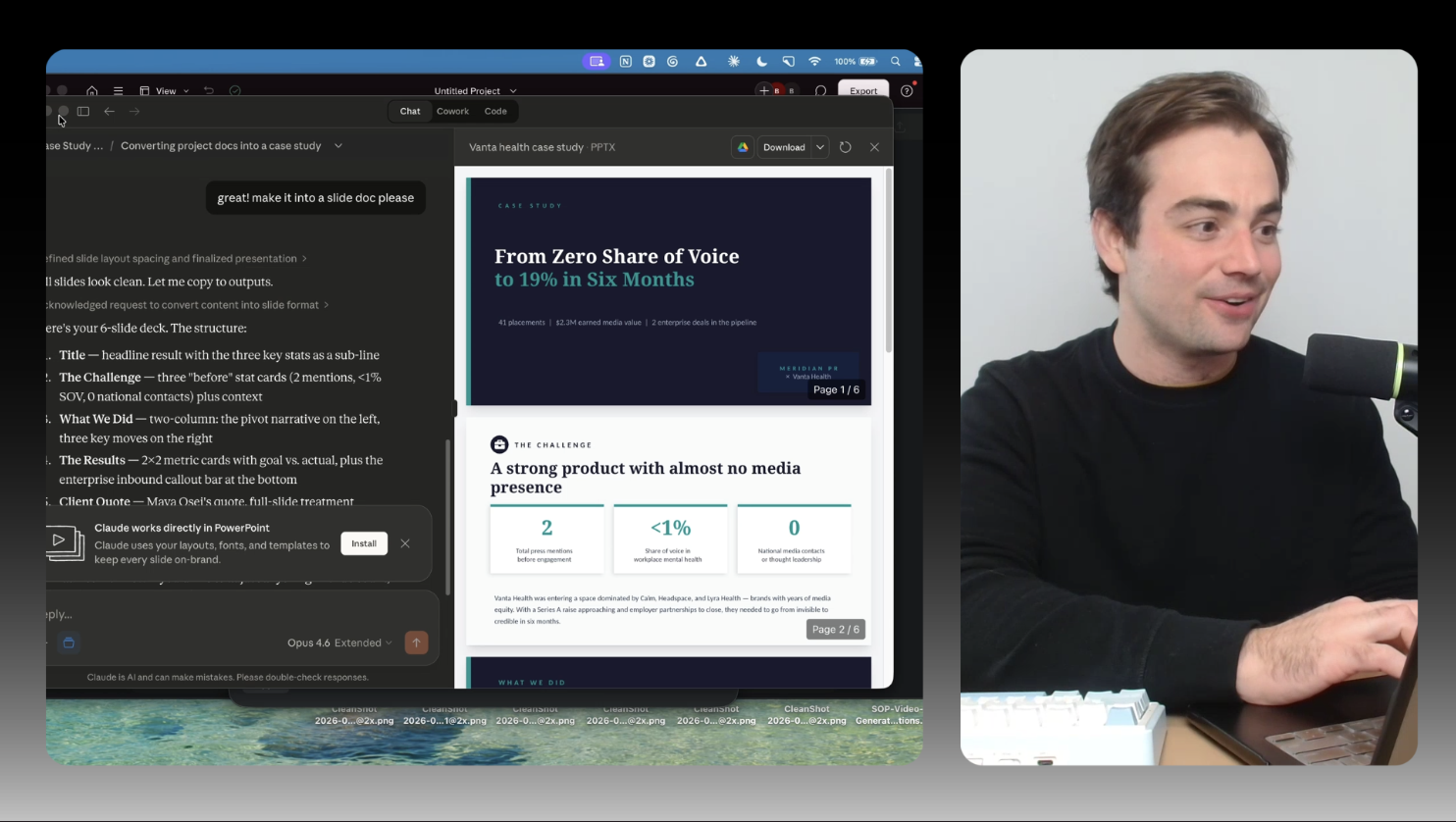
The Rundown In this guide, you will learn how to use Claude to turn your old project files into information-rich case studies you can use to win more proposals. We'll set up a Claude Project that gets smarter every time you use it, so the tenth case study you generate is better than the first. Who This Is Useful For Agency owners and account managers who finish client engagements with a folder full of wrap docs and metrics exports that never get turned into anything. This system produces a case study you can put on your website or send to a prospect the same day a project closes. Consultants and freelancers who know they should have case studies but never have time to write them. If you can record a two-minute voice memo at the end of a project, you have everything you need to run this. Marketing and sales teams who need to produce client success stories at scale. Instead of routing every request through a copywriter, anyone on the team can run this workflow and get a first draft that's 90% of the way there. What You Will Build A Claude Project called "Case Study Generator" that stays loaded with your style guide, example cases, and structural instructions. Every time you finish a project, you start a new chat inside the project, drop in your docs, and run one prompt. The output is a structured case study ready to publish or send to a prospect. What You Need to Get Started A Claude account (free tier works; Pro recommended for file uploads and longer context) The template files attached to this guide: the system instructions, style guide, and example cases Your project documents (a wrap memo, metrics export, client email, voice memo transcript, or call notes all work) Step 1 Start Writing Project Wrap Memos If you're not already doing this, start now. When a project ends, write a short memo covering the results and key KPIs. It doesn't need to be polished. A few bullet points is enough. If you're really pressed for time, a quick voice memo is better than nothing. This is the raw material the whole system runs on. The better your wrap memo, the better your case study. But even a messy one will produce something useful. We've attached an example wrap memo to this guide for your reference. Step 2 Set Up Your Claude Project Go to Claude and click Projects in the left sidebar, then New Project . Name it "Case Study Generator." Open the project instructions field and paste in the full contents of the Claude Project Instructions (Case Study Generator) file. This tells Claude exactly how to structure every case study it writes, including the seven-section framework, tone rules, what to do with missing data, and how to handle different types of raw input. Then upload the Case Study Examples and Structure Reference and Case Study Do's and Don'ts files as project files. These give Claude annotated real-world examples to calibrate against and a quality control checklist to run on every output. You only do this setup once. Every case study you generate from here on lives in a new chat inside the same project. Pro tip: Name each chat after the client and project (e.g., "Vanta Health, Q4 Campaign"). Your whole case study library stays organized and searchable inside the project. Step 3 Upload Your Project Files and Run the Prompt Start a new chat inside the project. Upload your project documents directly into the chat. The messier the input, the more impressive the output looks. Then run this prompt: Generate a publication-ready case study from these documents. Lead with the strongest result in the headline. Use the challenge, solution, results framework. If any section is missing data, flag it with [NEEDS INPUT] rather than inventing information. Claude will read everything you uploaded, cross-reference the instructions and examples in the project, and produce a full draft. With extended thinking on, it takes about 60 to 90 seconds. Pro tip: If the PDF formatting looks weird, don’t worry! It will look find when you download it or export it to Google Docs. Step 4 Review and Export Read through the output against the checklist in the Do's and Don'ts file. The main things to verify: Does the headline include a specific number or outcome? Is the "before" state clearly established? Are there at least 3 metrics in the results section? Is there a client quote, or a [NEEDS INPUT] flag where one should go? If you don't have a client quote, ask Claude to draft two or three options based on the results. Send them to your client and ask if they can put their name on one. They almost always say yes. Once you're happy with it, Claude can also generate a slide deck version or a social media carousel from the same case study. We found it does a great job with both. Step 5 File It and Feed It Back Save the final case study as a PDF and drop it into a shared folder. Label it clearly with the client name and primary result. Then upload the PDF back into your Claude project as a context file. This is how the system gets smarter over time. Each new case study becomes an example Claude can reference when generating the next one. One warning: only upload cases you've already edited and are happy with. If you feed Claude unedited drafts, it will optimize for whatever patterns are in those drafts, including the bad ones.
Tools

AI training for the future of work.
Get access to all our AI certificate courses, hundreds of real-world AI use cases, live expert-led workshops, an exclusive network of AI early adopters, and more.