Automate Your Gmail With Google Workspace Studio (Free Tool)
Try Text
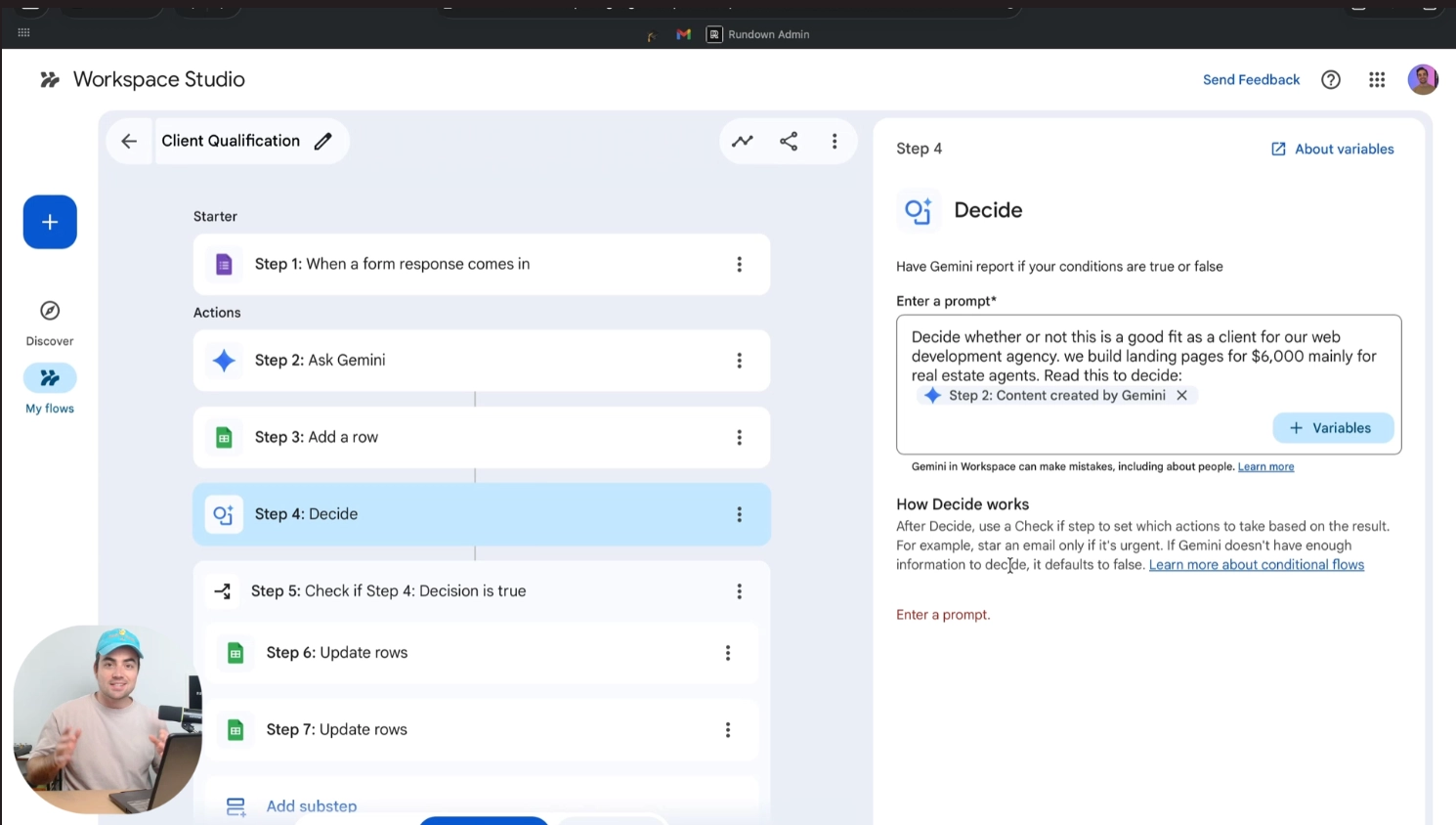
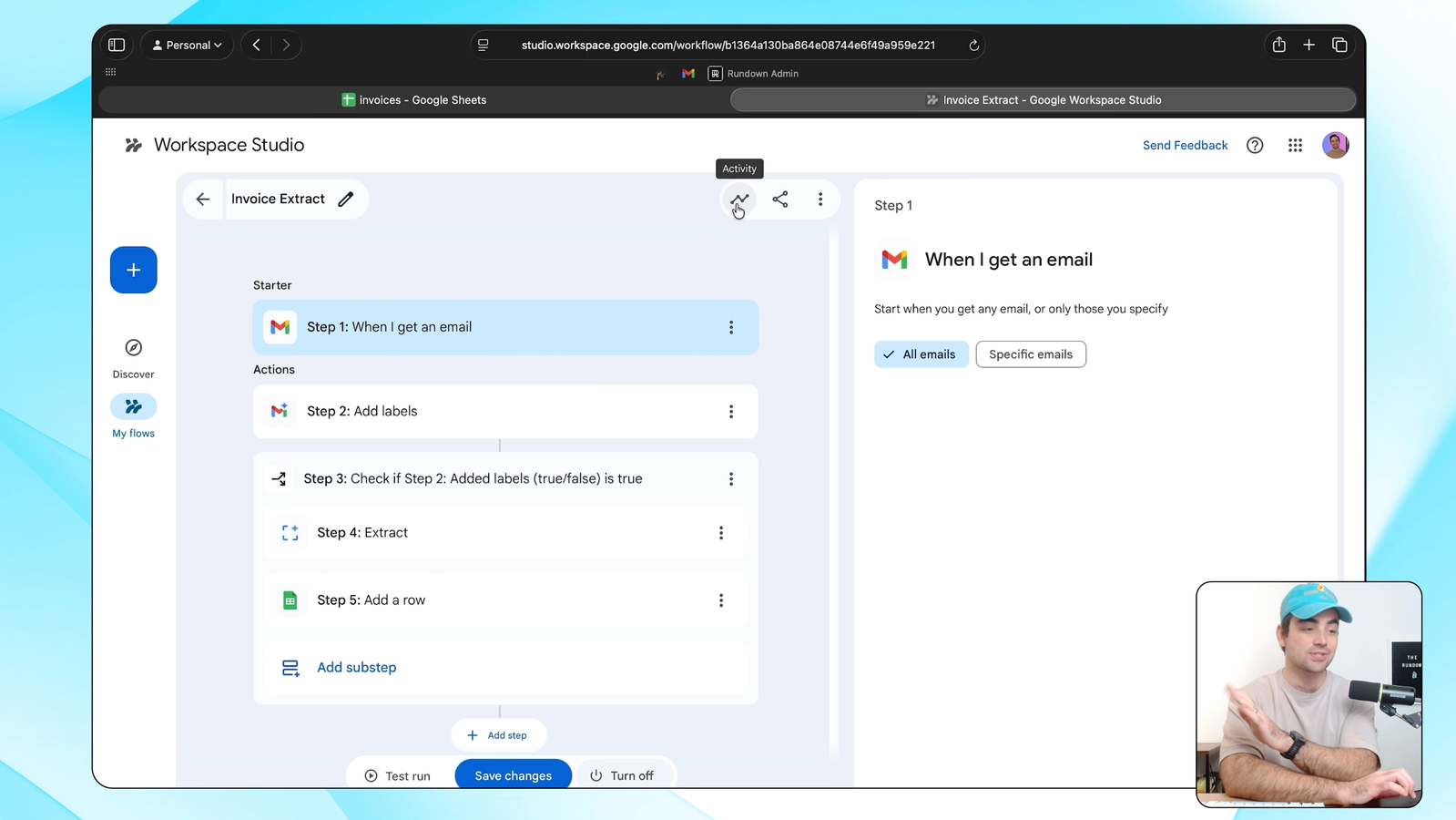
The Rundown In this guide, you will learn how to use Google Workspace Studio to automate your Gmail inbox. You will be able to set up agents that triage incoming messages, extract key information from invoices, and draft replies using Gemini, all without connecting third-party tools. Who This Is Useful For Anyone who gets a lot of email and wants AI to sort it before they even open Gmail Freelancers and small business owners who deal with invoices, client inquiries, and vendor emails that all need different handling Ops and finance teams who want invoice details extracted into a spreadsheet automatically What You Will Build A Gmail automation that uses Gemini to label incoming emails by category (invoices, newsletters, client messages, etc.) as they arrive. Then, optionally, you can layer on steps that extract specific details from labeled emails into a Google Sheet and draft replies. What You Need A Google Workspace account with access to Workspace Studio A Google Sheet (optional, for logging extracted data) Step 1 Check Out the Pre-Made Email Boosters Go to studio.workspace.google.com . Before you build anything custom, check out the email boosters on the homepage. These are one-click templates Google has pre-built: Daily email recap that summarizes your inbox (sends via Google Chat by default, but you can change it to email) VIP notifications that ping you when you get emails from important people Auto-label and star for follow-up emails These are a good way to get familiar with what the tool can do. Turn a couple on and see how they work before building your own flow. Pro tip: The VIP notification booster is useful out of the box, but you can take it further. Create a Google Sheet with a list of your VIP contacts (clients, teammates, your boss) and reference it in a custom flow. That way you just update the sheet instead of editing the flow every time. Step 2 Build Your Auto-Labeling Flow Click the plus button to create a new flow. Select "When I get an email" as your starter and set it to check all emails. Add an Add labels step. Toggle on AI-powered labels . You'll see a list of categories like "Receipts & Invoices," "Newsletters," "Social," etc. Select the ones you care about. You can edit each AI-powered label to tell Gemini exactly what to look for. Click into a label and describe what should qualify Only select labels you actually want to act on. You don't need to label everything, and fewer labels means fewer AI runs against your daily limit Hit Turn on , name your flow, and send yourself a test email to make sure it fires. Check the Activity tab in Workspace Studio to see exactly what happened at each step. Pro tip: It can take a few minutes for a flow to fire after a new email arrives. Be patient. We saw about 5 minutes max during testing. Step 3 Add an Extract Step (Optional) This is where the fun starts. You can use Gemini to extract information from your emails. We will walk you through an agent flow that extracts invoice details for you. First, create a flow like we did earlier. This time, create an AI label for invoices and only check the box for that label. Add a Check if step after the labeling step. Set it to run when the "Receipts & Invoices" label (or whatever label you chose) was added. Inside that conditional block: Add an Extract step. This tells Gemini to read the email and pull out specific fields. For invoices, that's the invoice amount, the sender, and the due date Add a Sheets > Add a row step. Select a Google Sheet you've set up for tracking, then map each extracted field to a column using the variables from the Extract step Now every time an invoice lands in your inbox, Gemini labels it, extracts the key details, and logs them in your spreadsheet automatically. If a step runs outside the Check if box, it runs regardless of whether the condition was true or false. Make sure your Extract and Sheets steps are inside the box You can add steps in the "If false" branch too. For example, update a row in your sheet to mark non-invoice emails as "Skipped" Step 4 Draft Replies With Gemini (Optional) You can also have Gemini draft email replies as part of any flow. Add an Ask Gemini step and use the variables tool to feed it the email content from a previous step. Write a prompt like: Read this email and draft a professional reply acknowledging receipt and confirming we'll follow up within 24 hours. Then add a Draft a reply step and pull in Gemini's response using variables. The draft will show up in your Gmail drafts folder. You review it and hit send. Pro tip: Workspace Studio cannot send emails on your behalf to other people. It can only send emails to you (like notifications). It can draft replies to anyone, but you have to manually send them Another Pro tip: Workspace Studio limits are unclear at the moment. if you want to stay under the flow limits, use non-AI flows for simple stuff (keyword filters, sender-based labels) and save the AI-powered steps for emails that actually need Gemini to read and interpret them. Going Further Build a full triage system. Create multiple flows with custom AI-powered labels for every category that matters to you: clients, internal, invoices, newsletters, job applications, whatever. Use that as your first layer, then build targeted flows on top of specific labels. Connect to Google Sheets for reporting. Beyond invoice tracking, you can log any extracted data. Client inquiry details, support request summaries, vendor quotes. Build a sheet per category and let Gemini populate them. Pair with the Form workflow. If you already set up the Google Workspace Studio form flow from our previous guide, you now have two automations running. Forms handle inbound requests, Gmail handles inbound email. Same tool, same interface, two powerful workflows.
Tools

AI training for the future of work.
Get access to all our AI certificate courses, hundreds of real-world AI use cases, live expert-led workshops, an exclusive network of AI early adopters, and more.