The Rundown AI / Guides / General / Create Your First Agentic Workflow in Google Workspace Studio
Create Your First Agentic Workflow in Google Workspace Studio

Create Your First Agentic Workflow in Google Workspace Studio

Try Text

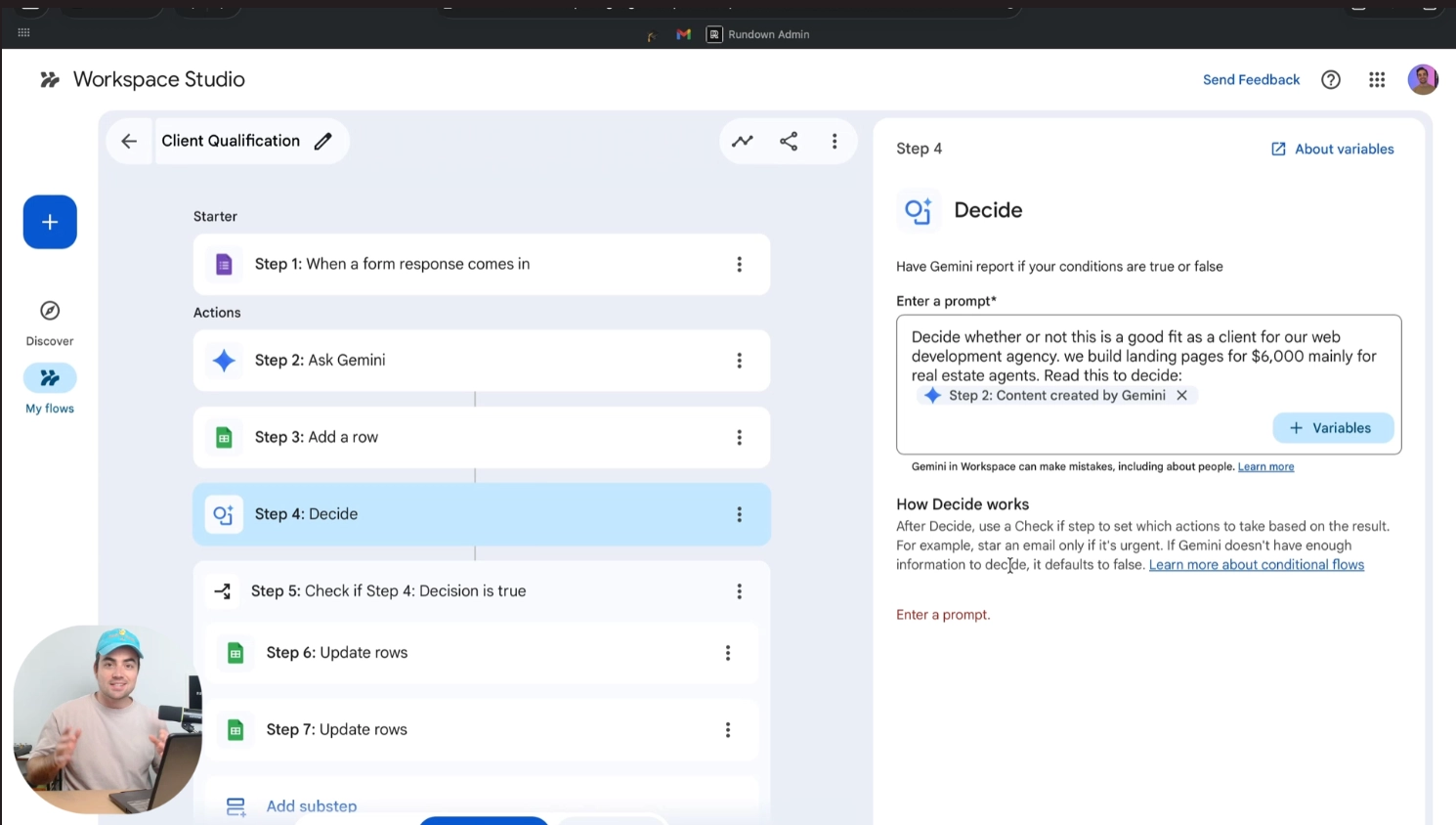
The Rundown In this guide, you will learn how to create an agent in your Google Workspace that reads form submissions, tracks them in a spreadsheet, and then emails you action items. You will learn Google’s new AI automation tool called Workspace Studio. It’s a lot like n8n or Zapier but comes preconfigured to work with your Gmail, Google Drive and more. Who This Is Useful For Agency owners and freelancers  who get inbound leads through forms and want to auto-qualify them before spending time on a call Ops and support teams  who handle internal requests (IT tickets, onboarding, troubleshooting) and want Gemini to triage them automatically Anyone on Google Workspace  who wants to automate a repeatable process without connecting external tools like Zapier or Make What You Will Build A Google Workspace Studio flow that fires when someone submits a Google Form. Gemini reads the response, summarizes it, logs the summary in a Google Sheet, decides whether the submission meets your criteria, and emails you if it does. The whole thing runs on autopilot. What You Need to Get Started A Google Workspace account or Gmail. You can access !orkspace Studio  here Note: If you don’t have access yet, you can check the rollout status  here A Google Form (existing or new) A Google Sheet (optional, for tracking responses) Step 1 Create a Google Form for whatever process you want to automate. For this guide, we're pretending we're a web design agency and the form is for new client inquiries. But this works for any inbound request: support tickets, client onboarding, project kickoffs, internal troubleshooting. Make sure the form is named and saved. You'll connect it to Workspace Studio in the next step. Step 2 Create a New Flow in Workspace Studio Go to  studio.workspace.google.com  and click the plus button to start a new flow. Select  "When a form response comes in"  as your starter (this is the automation trigger) Choose the form you just created Leave "Also run when a form response is edited" unchecked Step 3 Add the AI Summary Step Click  Add step  and select  Summarize > Content from previous steps > Variable > Form response . This feeds the entire form submission to Gemini. In the prompt box, give Gemini context about what this form is for. For example: Read this form response and summarize the potential engagement. We are a web design agency that specializes in homepage design and e-commerce design. Our average project budget is about $4,500. The more context you give Gemini here, the better the summary will be. Tell it what your business does, what a good submission looks like, and what matters to you. Pro tip: If you use an “Ask Gemini” step, you can let Gemini use context from you workspace to answer questions. Step 4 Log Responses in a Google Sheet (Optional) Add a new step:  Sheets > Add a row . Select a Google Sheet you've set up for tracking. Pull in the submitter's name and email using form variables (click into the field and select the variable from the form node) Add the AI summary as its own column Add a column for the form response link so you can always go back to the raw data. Use the "Link to form response" variable Pro tip:  Google Forms already has a built-in "Link to Sheets" feature, but this custom sheet is cleaner. You get just the fields you care about plus the AI summary, instead of every raw form field. Plus, there is a variable that let’s you add the link to the full form response. Step 5 Step 5 Add the Decision Step Add a  Decide  step. This is where Gemini reads the summary and makes a call. Paste a prompt like: Read this inbound lead summary and decide whether this lead is qualified based on the fact that we are a web design agency that specializes in homepage design and e-commerce design. Our average project budget is about $4,500. You can skip the summary step entirely and put the raw form response here instead. But having the summary first means you get a clean version in your sheet and in your email. The Decide step creates two branches:  If true  and  If false . You'll set up what happens in each. Step 6 Set Up the Email Notification Inside the  If true  branch, click  Add substep > Notify me by email . Build out the email: Subject line: something like "New Qualified Lead" with the submitter's name or company as a variable Body: paste in the AI summary variable, plus the submitter's name and email Include a link to the form response so you can verify the raw data If you set up the tracking sheet, you can also add an  Update row  step in each branch to mark the submission as "Qualified" or "Rejected." Match the row by the email column. It can be tricky to add in static values here. You may need to put “Qualified” and “Rejected” in two existing rows then select them from the dropdown. so they look like this: Pro tip:  Add the same Update row step in the  If false  branch too, marking those as "Rejected." That way your sheet always shows the status of every submission without you checking manually. Step 7 Turn It On and Test Name your flow and hit  Turn on . Submit a test response through your form. It can take up to 10 minutes for the flow to fire, but usually it's closer to 5 You can also run a test from inside Workspace Studio by clicking  Test run  and selecting a previous form response Check the  Activity  tab in Workspace Studio to see exactly what happened at each step: what Gemini summarized, what it decided, and whether the email sent If all goes well, you should get an email from yourself that looks like this. You can click the  Activity  button back in your flow to see the details of each run. Pro tip: You can click the “Test run” button to re-trigger any previous form submissions as a test. Going Further Going Further Client onboarding.  Use the same flow structure but add steps that create a new folder in Google Drive, generate a kickoff document, or draft a welcome email to the client. Gemini can do all of this inside Workspace Studio. Internal troubleshooting.  Replace the lead qualification logic with triage logic. Have Gemini categorize support requests by urgency and route them to the right person via email. Draft responses.  Instead of just notifying you, have Gemini draft a reply to the form submitter. You can review it before sending or let it go automatically if you trust the output.

Save 15% on Thoughtly by joining The Runway University

Through our vast network of over 100 partnerships with major AI companies, we also offer University members free access or major discounts to the many popular AI tools along with AI certified courses, daily guides on AI tools and many more.

Tools
No items found.

AI training for the future of work.

Get access to all our AI certificate courses, hundreds of real-world AI use cases, live expert-led workshops, an exclusive network of AI early adopters, and more.
General

Sales

Business Operations