How To Build a Productivity Tool With Replit + Interview Method
Try Text
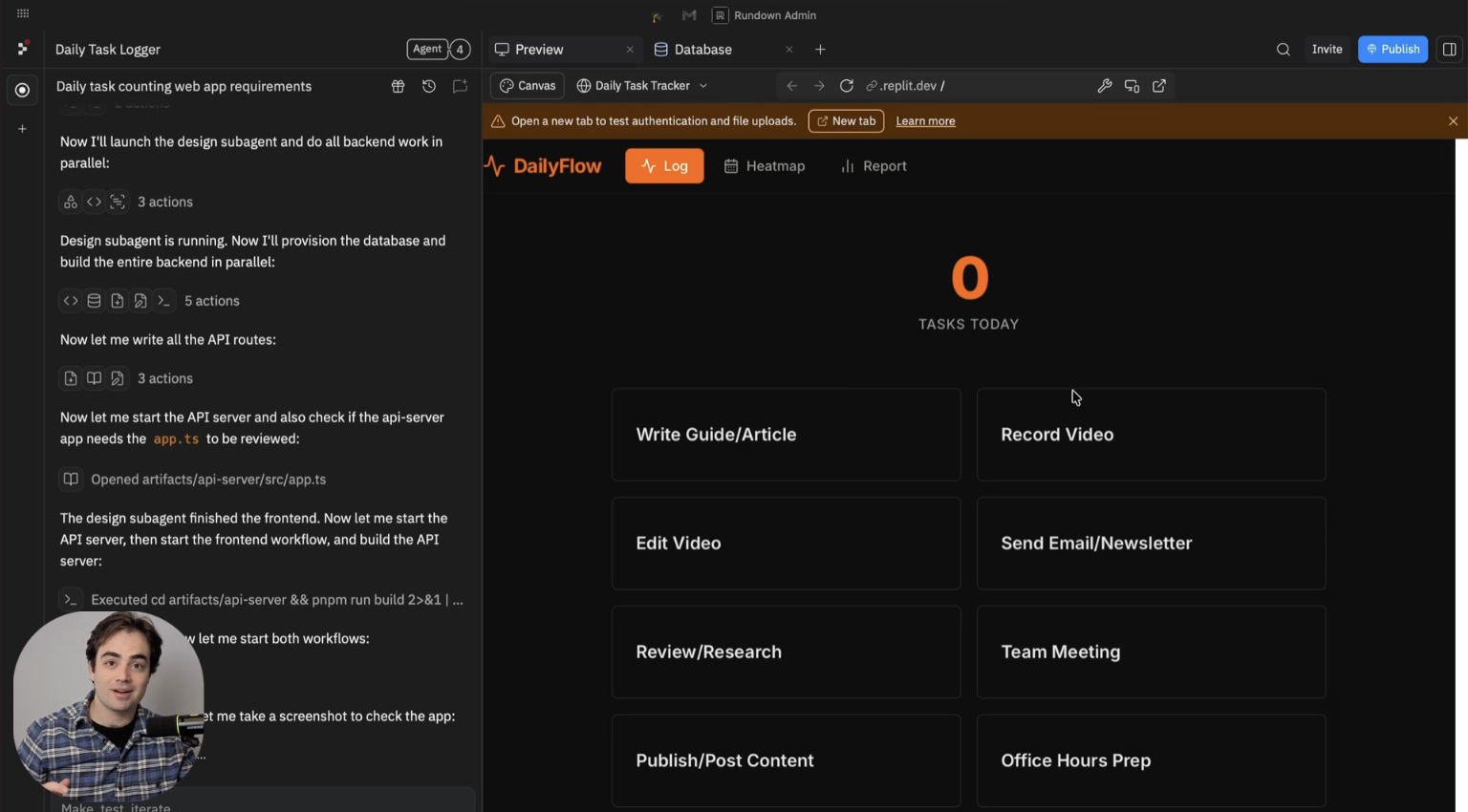
How To Build a Productivity Tool With Replit + Interview Method The Rundown In this guide, you will learn how to build a simple work tracker that counts what you actually did each day and turns it into a clean weekly report. The key move is that you do not start in Replit. You start with Claude or ChatGPT, let it interview you about your job, and use that conversation to decide what the app should track. Who This Is Useful For Managers, operators, and client-facing workers who get asked what they actually accomplished each week and do not want to answer from memory People juggling a lot of small outputs like calls, proposals, meetings, follow-ups, deliverables, or published work Anyone who hates time tracking and wants a lighter system that counts work instead of logging every minute What You Will Build You will build a lightweight tracker in Replit with daily task inputs, optional notes, a calendar heatmap, and a report generator. The final result is something you can update in a few seconds each day and use later for a manager update, client recap, or team check-in. What You Need to Get Started A Claude or ChatGPT account for the interview step A Replit account A rough understanding of the kind of work you do each week Replit Starter is enough to build this and publish one app. If you plan to keep building tools like this, Replit Core gives you more room to work, but you do not need to start there. Step 1 Use AI to Figure Out What You Should Track Start with Claude or ChatGPT instead of opening Replit first. The whole point of this method is to let the AI help you figure out what the app should track before you build anything. Use a prompt like this: interview me about my daily tasks so that i can prompt Replit to build me a daily task counting app That is it. From there, Claude or ChatGPT should ask you a few simple questions and turn your answers into a build prompt for Replit. In the demo, that surfaced task types like: sales calls deliverables sent client replies internal meetings content published proposals sent This part matters more than it sounds. The app is only useful if the categories are useful. In the demo, Claude surfaced categories it already knew from previous work. That is why this feels less like a formal interview and more like a quick sorting pass. Pro tip: Keep the labels tight. "Admin" is too vague. "Client response" or "Proposal sent" is much easier to count and much more useful in a report later. Step 2 Build the Tracker in Replit Once Claude or ChatGPT gives you the build prompt, paste that into Replit and let it build the app. Keep the ask simple. You want: daily number inputs for each task an optional note field a calendar heatmap a report generator for any date range In our test for this guide, the generated prompt was pasted directly into Replit and the first working version came together in less than ten minutes. The important mindset here is not "build me a perfect app." It is "build me something I will actually open every day." Step 3 Log a Few Fake Days First Before you trust the app with real data, add a few fake days so you can see the system working. This is the first win. Once the calendar starts filling in, the tracker stops feeling theoretical. You can actually see your work instead of trying to remember it at the end of the week. Keep the daily interaction tiny: enter the count add a note if needed save the day That is it. If logging takes more than 30 seconds, people usually stop doing it. One tweak worth making early is your time zone. AI-built apps often get dates slightly wrong if you do not specify it. If the tracker is going to be part of your daily routine, either tell Replit your time zone up front or ask it to let you edit dates manually. Pro tip: This works because it is task counting, not time tracking. You are not trying to account for every minute. You are just capturing the outputs that matter. Step 4 Generate the Weekly Report Once you have a few days of data in the app, click Generate Report and choose a weekly or monthly range. The output should include: total tasks completed daily averages your most active day a short written summary This is the part that makes the tracker useful. The data is already formatted for a manager update, client recap, or team check-in. A good report feels like: "23 client replies" "8 meetings" "5 proposals" "2 launches" Now you are not guessing what you did. You have something clean you can send. Step 5 Turn It Into a Daily Habit The app only works if you use it consistently, so the habit matters just as much as the build. The easiest version is to update it at the end of your workday. Open it, log the numbers, add one quick note if something unusual happened, and move on. That is the whole system. The point is not to become obsessed with measuring yourself. The point is to have a clean record of what you did so you are not reconstructing your week from Slack, email, and memory. Going Further If you want to make the tracker more useful, add a client or project tag to each entry. That gives you filtered reports by account instead of one big pile of activity. This is the easiest upgrade if you want to hand a boss, client, or team lead a report that shows not just what you did, but what those tasks supported. You can also add simple authentication if you want a cleaner personal setup, especially if you are going to keep using the app over time. For something like this, the threat model is usually pretty low. It is a personal accountability tool, not a banking app. So do not let security perfection stop you from building the first useful version.
Tools

AI training for the future of work.
Get access to all our AI certificate courses, hundreds of real-world AI use cases, live expert-led workshops, an exclusive network of AI early adopters, and more.