Build This AI-Powered Sales Objection Handler
Try Text
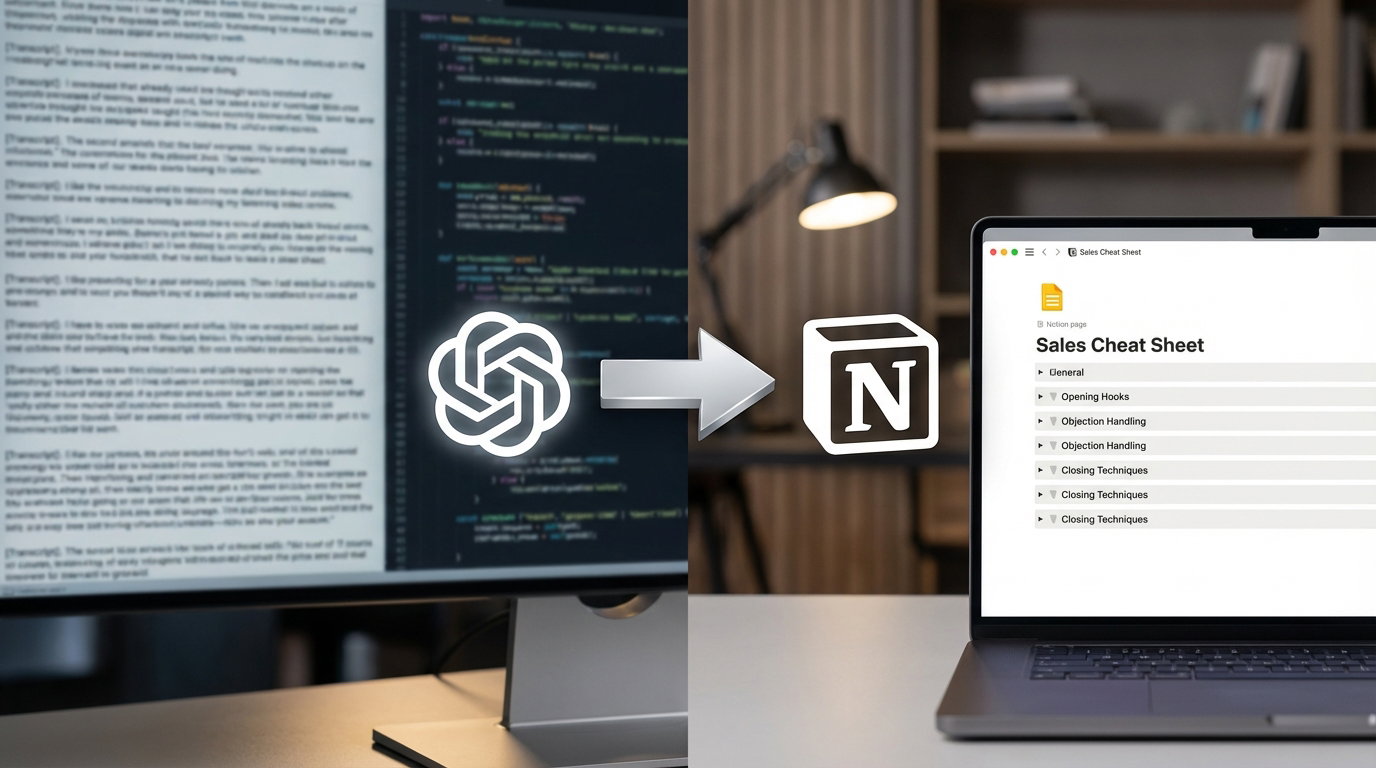
The Rundown In this guide you will learn how to actually build something useful with those sales call transcripts you are accumulating. This is a simple, weekly process that turns your weekly call transcripts into a handy quick reference document. Who This Is Useful For Sales Reps who need quick answers during "crunch time" on calls. Founders doing founder-led sales who need to track product feedback patterns. Managers who want a digestible weekly summary of why deals are stalling. What You Will Build A system that uses ChatGPT to parse your call notes each week and catalogue your sales objections. What You Need to Get Started ChatGPT Plus account ChatGPT desktop app Notion desktop app A bunch of sales call transcripts Note: We recommend ChatGPT and Notion but the principles can be applied to other AI and note-taking tools as well. Step 1 The Problem with "Perfect" Databases Most people over-engineer their AI workflows. They build beautiful, color-coded databases in Notion with a zillion properties per record. The problem with this is when you’re scrambling on a sales call you don’t have time to: Find and open the database Filter by date Filter by tag Click into the page and find the objection rebuttal So instead, we're going to use ChatGPT to help us update our single-page sales call cheat sheet. Step 2 Set Up Your ChatGPT Project Instead of feeding transcripts into a database one by one, we will use ChatGPT Projects as our processing engine. Open ChatGPT, click “New Project” then name it. Create a simple text file listing your product lines, pricing, and core offers. Upload this to the project files so ChatGPT understands what you actually sell. Every week, export your sales notes or transcripts. Ensure they have a date inside the text (e.g., "Call with [Client] - Feb 9"). Drag and drop these files into the Project. Step 3 Configure the System Instructions This is the secret sauce. You need to tell ChatGPT exactly how to format the data so it is readable at a glance. Click the three dots next to your Project name > Edit Instructions . Paste in instructions similar to this: "Read the attached transcripts. Create a weekly report template. For every objection found: 1. Number the objection. 2. State the objection clearly. 3. Provide 3 descriptive bullets on the context. 4. List which lead or prospect surfaced it. 5. Provide exactly two short, punchy rebuttals." Step 4 The Weekly Ritual Don't automate this end-to-end. The transcript argues that fully automated workflows become "AI slop" that you never look at. By manually generating the report, you force yourself to review the week's performance. Open your Project. Prompt: "Run weekly report for the week starting Feb 9." ChatGPT scans only the relevant files (thanks to the date filtering in your prompt) and generates a clean list. Step 5 The "Memory Bank" in Notion Open a blank Notion page. Create a Toggle Heading for the week (e.g., "Week of Feb 9"). Copy the ChatGPT output. Paste it inside the toggle. Now, when you are on a call and hear an objection about "contracts," you simply hit Cmd+F (or Ctrl+F), type "contract," and instantly see every objection and rebuttal related to that topic from the last few months. Going Further Connect Notion: You can connect the Notion app inside ChatGPT (Settings > Connected Apps). This allows ChatGPT to see the page you are currently working on, making it easier to reference past weeks without searching. Apply to All Meetings: Use this same "Project + Transcript" workflow for all-hands meetings or stand-ups. Ask for a "Fluff-free summary" to send to your boss. It is often more useful than a raw transcript because it is curated and formatted for reading.
Tools

AI training for the future of work.
Get access to all our AI certificate courses, hundreds of real-world AI use cases, live expert-led workshops, an exclusive network of AI early adopters, and more.