Get to Inbox Zero With This Claude Prompt
Try Text
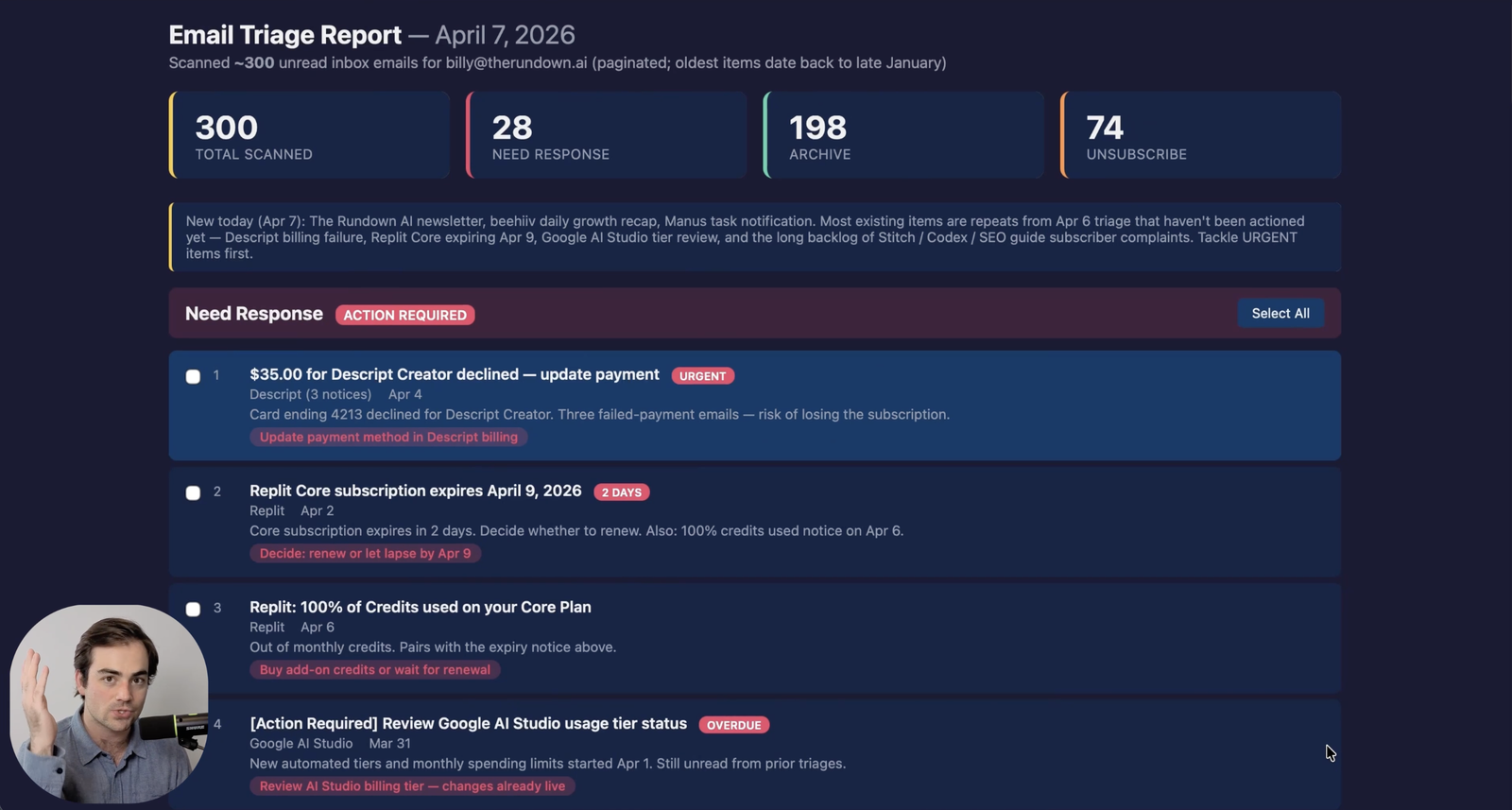
Get to Inbox Zero With This Claude Prompt The Rundown In this guide, you will learn how to build a daily email triage workflow using one Claude Cowork scheduled task. You will walk into a sorted inbox every morning, with drafts already waiting for the emails that actually need you. Who This Is Useful For Founders and operators who do the same morning inbox cleanup every day and are tired of making the same decisions over and over Anyone with a lot of newsletter, product, and marketing subscriptions mixed in with real work email Claude Cowork users who want a practical scheduled task that saves time on day one What You Will Build A recurring Claude Cowork task that scans your unread inbox each morning, sorts every message into one of four buckets, drafts replies for the ones that need them, and delivers an interactive HTML report you can check off in seconds. The result is a clean inbox, a queue of drafts ready to send, and a clear list of anything that needs a human decision. What You Need to Get Started Claude Desktop app and Pro Plan ($20/month) The Gmail connector enabled in Claude A local folder for Cowork to save reports and memory files One real morning's worth of unread email to triage Step 1 Run One Real Triage Session in Regular Claude Before you schedule anything, open regular Claude with the Gmail connector on and run one triage pass while you watch. This is the step most people skip, and it's the difference between a generic prompt and one that actually knows your inbox. Start with this prompt: Generate an interactive email triage report for the last 24 hours of unread email in my inbox. Sort each email into exactly one of these buckets: 1. Needs response 2. Needs attention 3. Archive 4. Archive and unsubscribe For each email, include the sender, subject, a one-line reason for the category, a direct link to the email, and the item number. Now give Claude feedback. Tell it which emails it got wrong. Name the senders that always matter. Flag the newsletters that should always be archived. Call out the product updates you actually want to keep. That feedback is what teaches Claude the difference between useful system updates, junk promos, teammate messages, and the weird edge cases that only show up in your inbox. Pro tip: If you want the lazy version, skip the test run entirely. Paste the prompt in Step 2 as-is. Step 2 Have Claude Write Your Custom Recurring Prompt Once Claude has done one real pass and you've corrected it, ask it to turn the workflow into a reusable prompt: Turn this workflow into a recurring task prompt for my inbox. Include my common senders, archive rules, unsubscribe rules, and which messages should be drafted or flagged. Below is the structure we ended up with after doing exactly this. Replace the bracketed placeholders with your own email address, team domain, and the tools and senders that show up most in your inbox. You are running the daily email triage for [your@email.com]. Follow these steps: ## Step 1: Scan Inbox Use `gmail_search_messages` with query `is:unread in:inbox` and maxResults 50. Paginate through all results. ## Step 2: Read Important Threads For emails from @[yourcompany].com teammates, or any email that looks like it needs a personal response, use `gmail_read_thread` to pull full context. ## Step 3: Categorize Every Email **Needs Response** - direct messages from teammates - calendar invites that need accept or decline - real customer or subscriber replies with questions or complaints - security alerts - product updates from tools I actively use **Needs Attention** - anything that needs a personal follow-up but not a drafted reply - billing or account notices that require an action **Archive** - my own newsletter copies - routine recap emails - calendar RSVP responses - auto-replies and out-of-office messages - bounce notifications - receipts and purchase confirmations - self-sent emails **Archive and Unsubscribe** - unsolicited product promos - repeat marketing senders - non-essential promotional senders ## Step 4: Deliver an Interactive HTML Report Do not label, draft, or archive anything yet. Instead, save an HTML file to my Cowork workspace named `triage_YYYY-MM-DD.html` using today's date. The report should include: - a dark theme - a stats bar with counts per category - numbered rows with a checkbox next to each email - Gmail deep links in the format `https://mail.google.com/mail/u/0/#all/{threadId}` - sender, subject, date, and snippet for each email - a suggested action for each Needs Response item - a "Select All" button per category - a "Download Approvals" button that exports a JSON file of the checked items Then stop and wait. Do not take any further actions in Gmail until I come back with the approvals file. ## Step 5: Act On the Approvals File When I upload the approvals JSON back to you, read the checked items and act only on those. For each approved email: - Needs response: create a draft reply with `gmail_create_draft` using the thread ID, then apply the label `Claude/Needs-Response` - Needs attention: apply the label `Claude/Needs-Attention` - Archive: apply the label `Claude/Archive` - Archive and unsubscribe: apply the label `Claude/Unsub` Ignore any row I did not check. Only pause to ask me if a thread looks like phishing or involves money or legal decisions. When you're done, report back with the counts: drafts created, threads labeled, and anything you skipped. Step 3 Save It as a Claude Cowork Scheduled Task Now move into Claude Cowork and make it recurring. Create a local folder called something like Email Triage . That becomes the workspace where Cowork saves the daily HTML reports and memory files. In Cowork, click Scheduled > Create New Task , paste in your custom prompt from Step 2 as instructions. Click More options > Folder to work in and select your new folder. Pro tip: You can also ask Claude to turn the prompt into a skill and reference it in the instructions of the scheduled task. Step 4 Approve the Report and Let Claude Execute When the task fires, Claude will not touch your inbox yet. It creates an interactive report you can click on with every unread email, sorted into buckets, with a checkbox next to each row and a direct Gmail link so you can audit any call in two clicks. Open the report in a real browser window, not inside Cowork. This matters. If you only open the file inside Claude, the browser sandbox will not let you download the completed checklist after you mark it up. Once it's open in Chrome or Safari, scan the list and check the boxes for every email you want Claude to act on. Uncheck or ignore anything it got wrong. When you're done, click Download Approvals . The page saves out a JSON file of exactly what you approved. Now upload that JSON back into the same Claude conversation and tell it to get to work. Claude reads the checked rows, drafts replies for the Needs Response items, applies the right Claude/* label to each approved thread, and reports back with the counts. Open the Claude/Needs-Response label in Gmail, send the drafts that look right, tweak the ones that need a human touch, and you're done for the morning. Going Further Wire Gmail filters to your labels. This is the upgrade that makes the whole system almost instant. Once the Claude/* labels exist, go into Gmail's filter settings and set up rules so the labels do the work for you. Anything tagged Claude/Archive leaves the inbox automatically. Anything tagged Claude/Needs-Response or Claude/Needs-Attention gets starred. Anything tagged Claude/Unsub stays visible as a weekend cleanup queue. Claude applies the label through the connector, and Gmail takes it from there. No browser automation required.
Tools

AI training for the future of work.
Get access to all our AI certificate courses, hundreds of real-world AI use cases, live expert-led workshops, an exclusive network of AI early adopters, and more.