Turn Any Flat Image Into a Fully Editable Design in 60 Seconds
Try Text
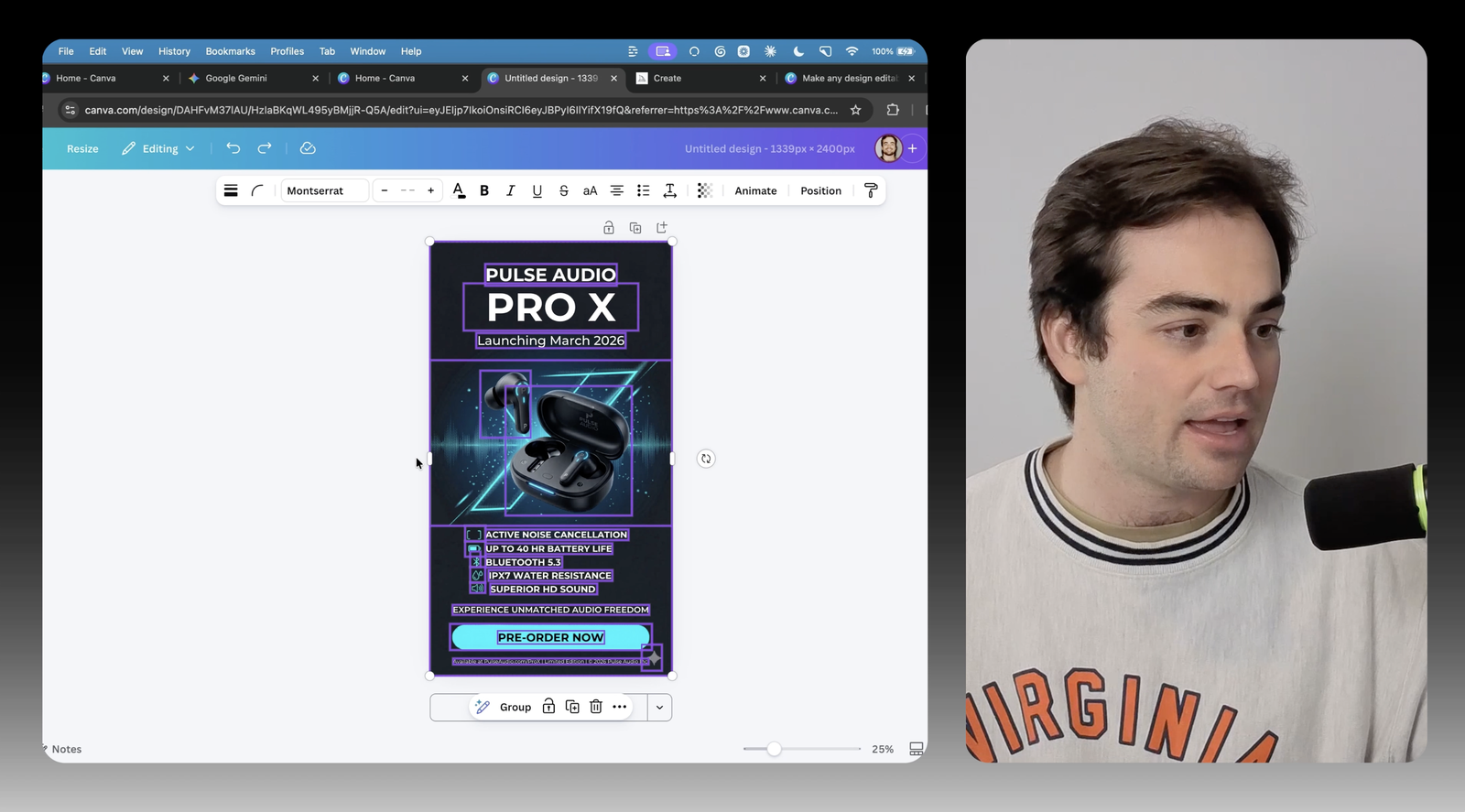
The Rundown In this guide, you'll learn how to use Canva's new Magic Layers feature to turn any flat AI-generated image into a fully editable design. If you generate images with AI at all—whether it's ads, social posts, slides, or t-shirt designs—this workflow solves the one problem that makes AI image generation frustrating: fixing small details without regenerating the whole thing. Who This Is Useful For Anyone generating images with AI tools who keeps getting 95% of the way there but has to re-prompt over and over to fix one wrong word, date, or detail, watching the image quality degrade each time Marketers and content creators who generate ads, social graphics, or product images and need to swap out text, reposition elements, or update branding without starting from scratch Small business owners or freelancers who want to make AI-generated infographics, slides, or promotional graphics actually usable by editing the pieces that AI always gets slightly wrong What You Will Build A workflow for taking any flat AI-generated image (PNG or JPG) and splitting it into editable layers inside Canva so you can change text, move objects, swap colors, and fix details without regenerating. What You Need to Get Started A Canva Pro account (Magic Layers is a Pro feature, $18/month) A flat image to edit: a PNG or JPG you generated with any AI tool, or an old graphic you want to update Step 1 Generate or Grab Your Image Start with an AI-generated image that is close to what you want but has something wrong with it. A date that needs changing, a misspelled word, a tagline that needs updating. We tested this with a product launch ad for a pair of headphones. The image looked great, but the launch date was wrong. Normally, you would go back to whatever tool generated it and re-prompt with the correction. The problem is that every time you do that, the image quality degrades a little. It gets more and more compressed, like a meme that has been screenshotted too many times. Eventually you are stuck choosing between a slightly wrong image and a noticeably worse one. Pro tip: Magic Layers might struggle with images with overly complex patterns or really small text. So don’t get discouraged if your first try doesn’t work out. Step 2 Open Magic Layers There are two ways to get to Magic Layers. From the homepage: Go to canva.com , select Magic Layers from the homepage, then click Select Media and choose your image. Canva will show your existing projects and uploads, so you can pick the image you want to edit. From inside an existing project: If your image is already in a Canva design, select the image on the canvas, click Edit in the toolbar, then go to Magic Studio and click Magic Layers . Step 3 Wait for the Layers to Separate Once you run Magic Layers, it takes about 30 to 60 seconds to process. Canva reads the layout, identifies the different elements (headlines, subheadlines, product images, background patterns), and splits them into individual layers. We watched our headphones ad get broken into four clean layers: the main headline, the subheadline with the launch date, the product photo, and the background. It matches fonts and colors to text so you can edit each of them separately. Pro tip: This tool only works with PNG and JPG files. But if you want to edit a PDF, you can first convert it into an image, then upload it into Canva! Step 4 Edit the Pieces That Need Fixing Click any text layer and the text is live. Not a flat image anymore. You can change a date, rewrite a tagline, fix a typo. Click an object layer to move it, resize it, or delete it. Drop in a new product photo and it slots into the existing layout. If you’re using a real-life photo or a generated image that’s photorealistic, this tool might not work well. You can try Canva’s background removal tool to separate the foreground and background (read full guide here ). Going Further The hardest thing to do with AI image generation is make good infographics. The AI always gets some text chunk wrong somewhere, and you end up either accepting the mistake or regenerating the whole thing and losing what you liked. Now you can generate the infographic, the slide, or even the t-shirt design, and then fix the details with Magic Layers. Generate first, edit second. That is the workflow shift. Try generating a complex PowerPoint slide or a detailed infographic with your AI tool of choice, then bring it into Canva and run Magic Layers. Edit all the text, reposition the elements, and keep the visual design you already liked. That is the use case people have been shying away from with AI generation, and this makes it actually work.
Tools

AI training for the future of work.
Get access to all our AI certificate courses, hundreds of real-world AI use cases, live expert-led workshops, an exclusive network of AI early adopters, and more.