The Rundown AI / Guides / General / How To Let Claude Use Your Computer Remotely With Dispatch
How To Let Claude Use Your Computer Remotely With Dispatch

How To Let Claude Use Your Computer Remotely With Dispatch

Try Text

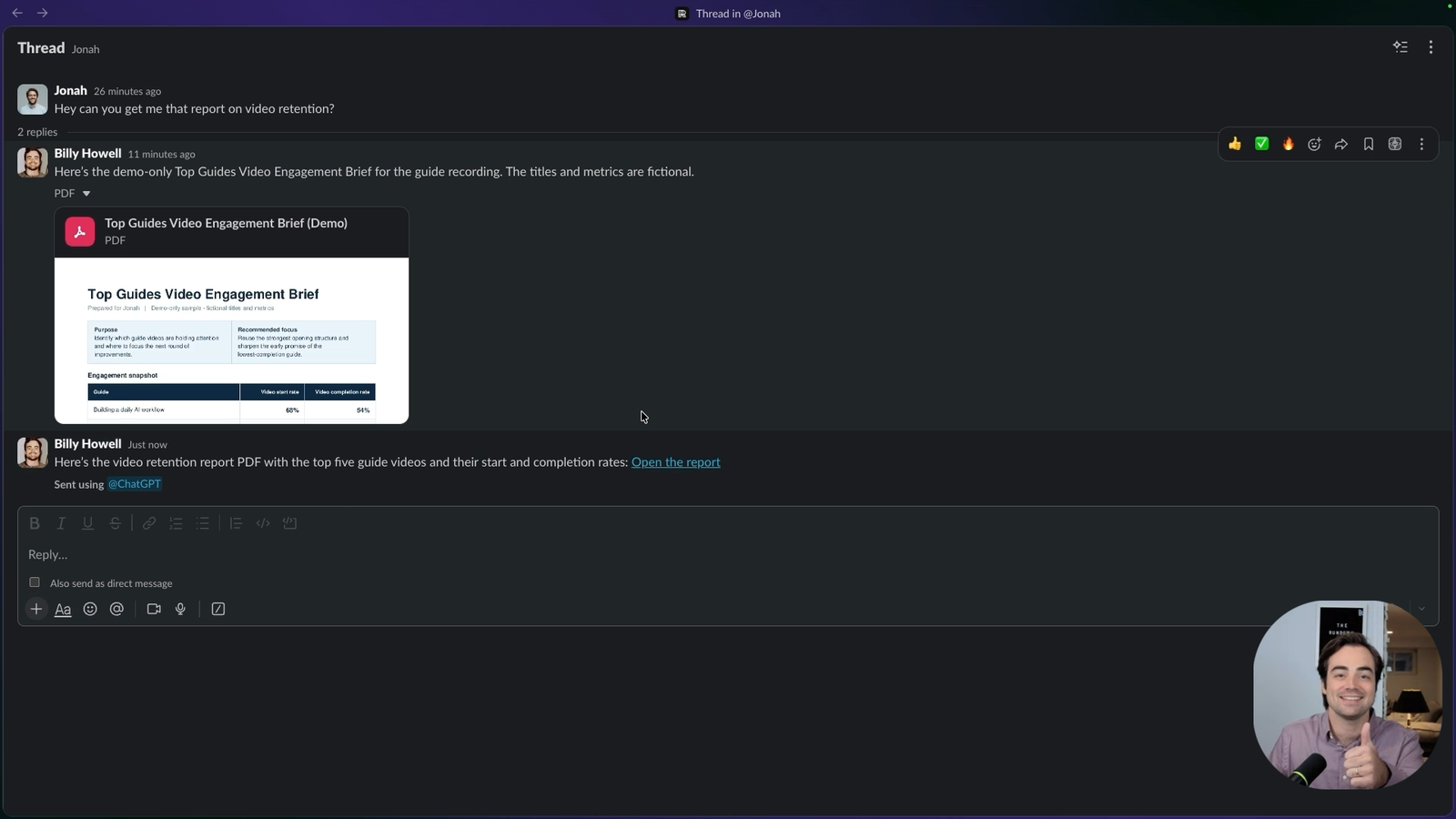
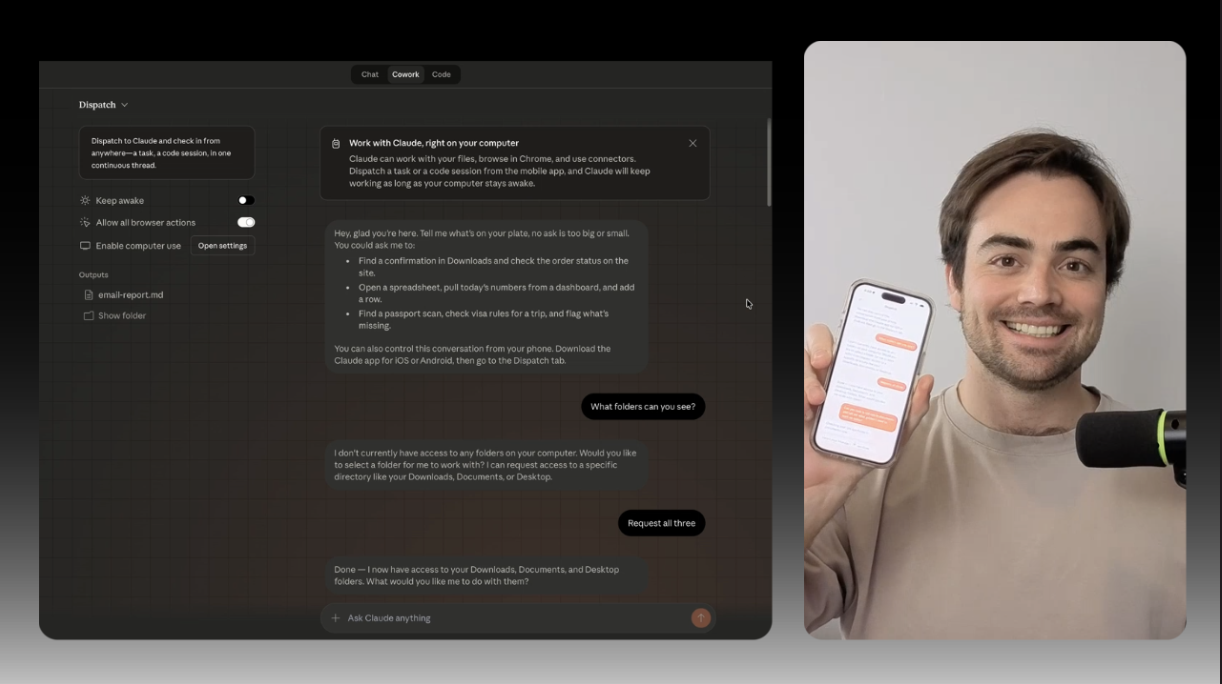
The Rundown In this guide, you will learn how to use Dispatch to hand Claude a task from your phone or desktop and have it finish the work on your computer. You will be able to keep small admin work moving while you are away from your desk instead of letting it pile up until later. Who This Is Useful For Operators and chiefs of staff  who want inbox cleanup, file organization, or quick recaps handled while they are moving between meetings Founders and solo operators  who keep switching between phone and desktop and want one continuous thread instead of restarting the task every time Anyone testing Cowork seriously  who wants a safe first workflow for remote computer use before handing Claude bigger jobs What You Will Build You will set up Dispatch, pair it with your phone, and run a simple remote task on your computer. The result is one repeatable workflow you can use for things like email cleanup, file organization, or an end-of-day work summary. What You Need to Get Started A Claude Pro plan or higher The latest Claude Desktop app The latest Claude iOS app Step 1 Start on your computer. Open Claude Desktop and make sure it is current before you do anything else. On Mac, click  Claude > Check for Updates  in the menu bar. Then update the Claude mobile app on your phone too. Once both apps are current, open Cowork in Claude Desktop, click  Dispatch , and click  Get started . Step 2 During setup, Claude will ask for permissions. Turn on file access if you want Claude to read and write inside a local folder. Turn on keep-awake if you want the task to keep running while you step away. Make sure you have the Claude in Chrome extension installed and logged in. Optional: Set up a dedicated local project folder before your first run. It is easier to monitor what Claude touched, easier to review outputs, and much safer than giving access to your whole machine. Pro tip:  If you go to  Settings > General > Computer Use , you can toggle on an experimental feature that allows Claude to use your keyboard and mouse to use any app on your computer. This is worth experimenting with but we recommend leaving it off by default as it can give too many options to Claude and slow down your workflows, not to mention it poses security concerns. Step 3 After the desktop setup, you will be asked to pair Dispatch in the Claude mobile app. Once the connection is live, send Claude a simple task from your phone and let it continue the work on your computer. Good first tasks are: triage, label and archive all your emails from today organize files in a project folder compile a quick summary from files already on your machine generate an end-of-day report from the work you finished today Start with something reversible and easy to review. Dispatch is strongest when the task is useful but not high risk. Remember, you don't want to create more work for yourself when you come back to your desk. To make it even easier, tell Dispatch to write a log file of what it did on your computer. Step 4 When Claude finishes, check the output on desktop and in the same synced conversation on mobile. You should be able to see what it did, where it saved the result, and what still needs your input. Dispatch currently keeps everything inside one continuous thread on your phone. That makes it easy to pick back up later, but it can also feel messy if you expect every mobile request to behave like a clean new chat. It will start new threads under Cowork in the desktop app and they will be labeled as Dispatch threads. Dispatch gets more valuable when it becomes a habit instead of a stunt. The core pattern is simple: send a task from your phone, let Claude do the desktop work, then come back to something cleaner and more organized than you left it. Going Further Running late for a virtual meeting? Tell Dispatch to open your calendar, meeting notes and the Zoom app. On a client lunch? Tell Dispatch to write a report of all the Emails and Slack messages you missed during your lunch hour and open it on your desktop.

Save 15% on Thoughtly by joining The Runway University

Through our vast network of over 100 partnerships with major AI companies, we also offer University members free access or major discounts to the many popular AI tools along with AI certified courses, daily guides on AI tools and many more.

Tools

No items found.

AI training for the future of work.

Get access to all our AI certificate courses, hundreds of real-world AI use cases, live expert-led workshops, an exclusive network of AI early adopters, and more.
General

Business Operations