Launch an AI-Powered Outbound Calling Agent in 15 Minutes
Try Text
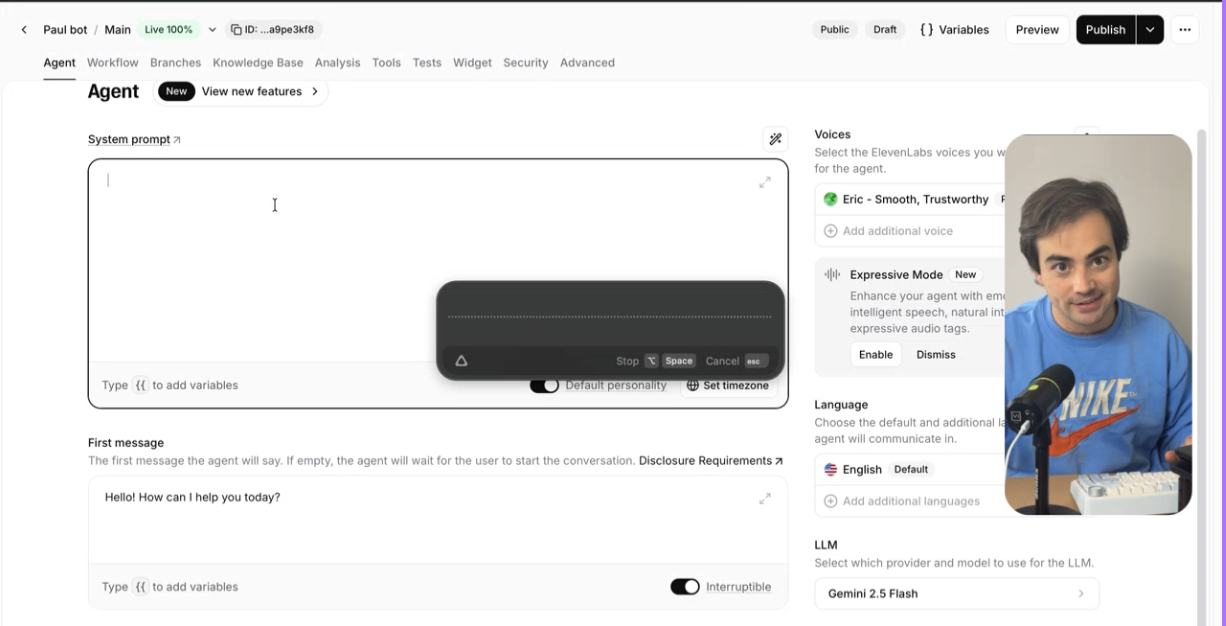
The Rundown In this guide, you will build an AI agent that makes real sales calls on your behalf. You’ll learn to create the agent, get a $1 phone number and upload a list of contacts for it to call. The whole setup takes about 15 minutes and costs $0 to test. Who This Is Useful For Sales teams running outbound campaigns who want to qualify leads before a human gets on the phone Small business owners who don't have time to make 50 cold calls a week but need pipeline moving Consultants and agencies who want to automate appointment booking, customer check-ins, or event RSVPs without hiring a VA What You Will Build A fully functioning AI phone agent that calls a list of contacts, has a natural conversation based on your prompt, handles objections, and logs full transcripts — all from a simple CSV upload. What You Need to Get Started Eleven Labs account (free plan or $9) Twilio account (free to sign up — $15 in credits included) A list of phone numbers to call An idea of what you want the agent to say Step 1: Create Your AI Agent in Eleven Labs Sign in to Eleven Labs and go to the Agents section. Create a new agent. Choose a voice. Browse the voice library and pick one that fits the tone you're going for. Pro tip: You can paste your business's URL into the agent’s knowledge base and the agent will pull context from it. This way, if someone asks a question about your company during the call, the agent has real answers instead of making things up. Write the system prompt. Tell the agent who it is, what company it represents, and what the goal of the call is: You are a friendly sales rep for [your company]. You're calling to introduce [your product/service] and see if the prospect would like to schedule a 15-minute meeting this week. Be conversational, not pushy. If they're not interested, thank them and end the call politely. If they want to schedule, confirm their preferred day and time. Set the conversation starter. This is the first thing the agent says when someone picks up. Make it natural: Hey, this is [Agent Name] calling from [Company]. I wanted to quickly share something we've been working on -do you have two minutes? Hit Publish when you are done. Pro tip: Keep the system prompt short. A few sentences covering who, what, and goal is all the agent needs. It handles the back-and-forth naturally -you don't need to script every possible response. Step 2: Set Up Twilio and Get a Phone Number Go to twilio.com and create a new account. They give you $15 in free credits to start. That's more than enough for testing. Buy a phone number. It costs about $1.20 to purchase and $1.20/month to keep. Browse the available numbers and pick one. Once you have your number, go to your Twilio dashboard and grab three things: Your phone number (the one you just bought) Account SID (right on the main dashboard) Auth Token (right below the SID -click to reveal it) That's everything you need from Twilio. Pro tip: Twilio is pay-as-you-go. fractions of a cent per minute of call time. The $15 in free credits covers a lot of test calls. You won't need to add a payment method until you're ready to scale. One heads up: during the free trial, when someone answers a call from your Twilio number, they'll hear a short message from Twilio saying "press any key to connect." That message goes away once you upgrade, but it doesn't affect testing. Step 3: Connect Twilio to Eleven Labs Go back to Eleven Labs. In the left sidebar, find Phone Numbers and click Create New . Paste in three things: Your Twilio phone number Your Account SID Your Auth Token That's the entire connection. Your Eleven Labs agent now has a real phone number it can make calls from. Step 4: Upload Contacts and Start Calling In Eleven Labs, look in the bottom-left corner for Outbound . Click it and create a new batch. Select Telephony as the channel. Download the CSV template that Eleven Labs provides. You'll see it has several columns -you can remove everything except the phone number column. Add your list of numbers and save. Upload the CSV back into the outbound batch. From here you have three options: Send immediately -starts calling your list right now Test -calls your own number so you can hear how it sounds first Schedule -set it to call at a specific time (like 9am tomorrow morning) Select your phone number and agent, then launch. Pro tip: If you want to override the system prompt or conversation starter for a specific batch without changing your main agent settings, you can enable that. Go into your agent in Eleven Labs → Security tab → toggle on the override options. This lets you customize the messaging per batch while keeping your default agent intact. Going Further Once the basic outbound flow is working, there's a lot you can build on top of it. Enable call transfers. In your agent settings, go to Tools and toggle on the Transfer to Number system tool. Punch in your phone number and add a condition to the instructions -something like "if the prospect says yes to a demo, transfer the call." The agent will call you and patch the lead through live. Connect scheduling and CRM tools. Eleven Labs integrates with Cal.com , HubSpot, Salesforce, and more. You can also build custom integrations using webhooks and n8n to route call outcomes into whatever system you use. Qualify leads automatically. Add qualifying questions to your prompt -budget, timeline, decision-maker status -and the transcript becomes a lead scorecard you can sort through without listening to a single call. Beyond sales. This same setup works for appointment reminders, customer feedback calls, event RSVP collection, renewal check-ins, or any scenario where you'd normally make repetitive phone calls. Swap the prompt, upload a new list, and the agent handles it.
Tools

AI training for the future of work.
Get access to all our AI certificate courses, hundreds of real-world AI use cases, live expert-led workshops, an exclusive network of AI early adopters, and more.
.png)