How To Take AI Notes on Phone Calls
Try Text
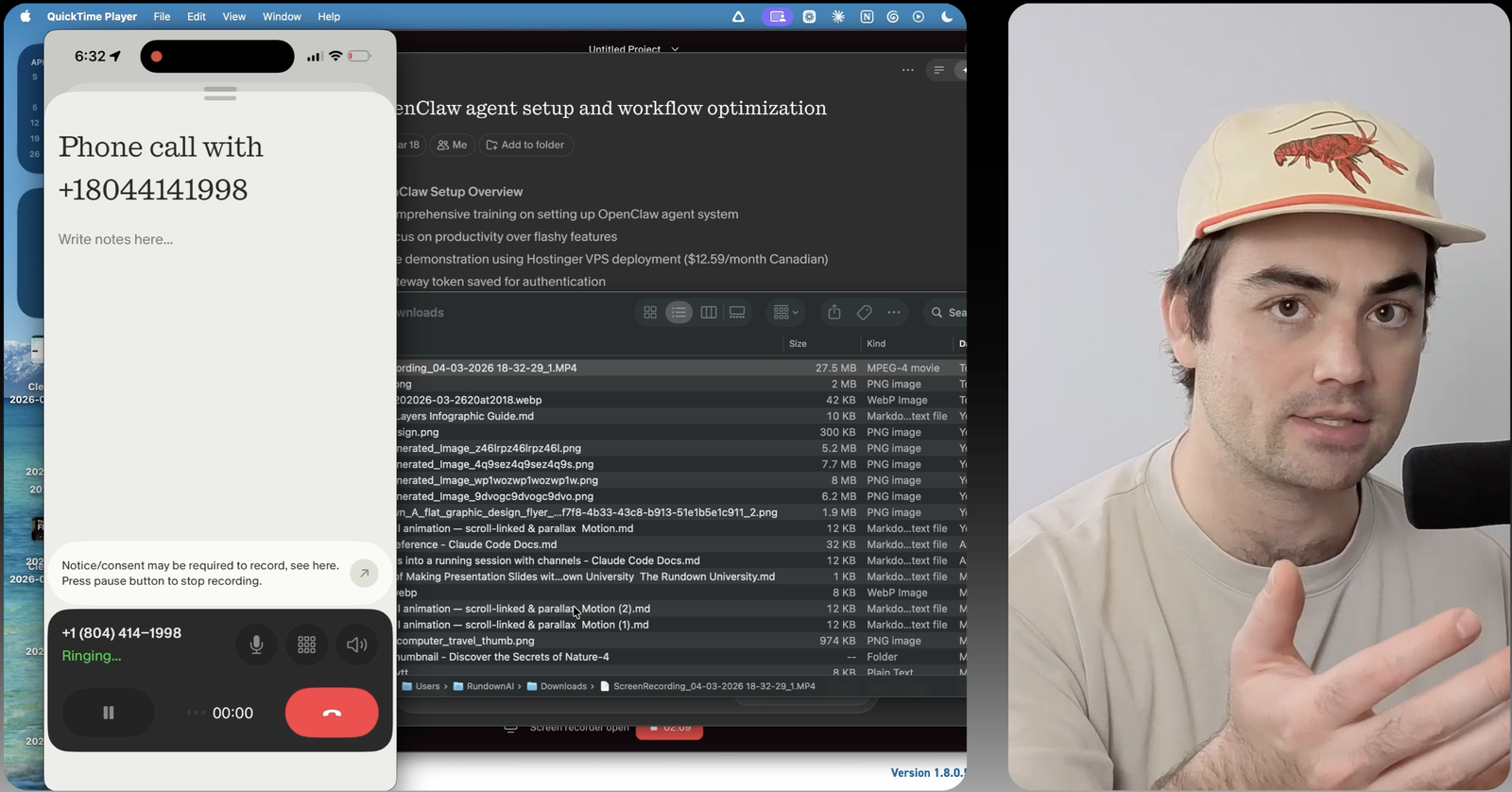
The Rundown In this guide, you will learn how to set up an AI notetaker that works with any phone call on your iPhone. You probably know about AI notetakers for web conferencing, and you might even use Granola AI already. But most people don't know that you can use it on both outbound and inbound phone calls. Note: Check the recording consent laws for your state before recording your calls. Who This Is Useful For Sales reps and account managers who make 10+ calls a day and can't remember which prospect said what by the time they sit down to update the CRM Founders and operators who take calls on the go (vendor negotiations, investor updates, partnership conversations) and need clean notes without slowing down Consultants and freelancers who want a record of what was agreed on a client call so nothing falls through the cracks What You Will Build A repeatable setup where every phone call you make from your iPhone gets transcribed, summarized, and organized automatically. You will walk away with named, searchable call notes that sync to your desktop and (optionally) to your CRM, Notion, or Slack. What You Need to Get Started An iPhone The Granola app (free plan works) A few minutes to verify your phone number Pro tip: Before you start recording calls, check the recording consent laws for your state. Some states require both parties to consent to being recorded. Look up whether you are in a one-party or two-party consent state so you know what you need to disclose. Step 1 Download Granola from the iOS App Store and open the app. Tap the phone icon in the bottom left corner to start the phone call setup. Enter your phone number and follow the verification instructions. Granola will call you to confirm, and you will enter a code to complete the pairing. Once verified, you can optionally connect your iPhone contacts. This makes it faster to call people directly through the Granola app instead of typing numbers every time. Step 2 Tap the phone button in Granola, pick a contact or type a number, and call. The call will work like a normal phone call. The difference is that Granola is listening in the background and transcribing the conversation. When you hang up, wait a minute or two. Granola generates a clean summary with action items and anything worth remembering. You don't need to stay on the screen while it processes. Pro tip: If you create section headings in your notes before or during a call, the AI will automatically organize your notes into those headings at the end of the call. Try using headings like “Followup” or “Background Info”. Step 3 Granola works best with outbound calls. If you open a new note on an inbound call it will only be able to transcribe your voice. If you have your laptop you can open a new note there and take your call on speaker phone. Step 4 Name every call note with a templated title like [name] @ [company] so they are easy to scan later. Create separate folders for different call types: sales calls, personal calls, vendor conversations, whatever categories make sense for you. Your call notes sync to Granola's desktop app automatically, so everything you capture on your phone shows up on your computer too. Going Further If you want call notes stored somewhere more permanent, go to Integrations in Granola's settings and connect Notion, Zapier, Slack, HubSpot, or your CRM. That way your call notes land where you will actually use them instead of sitting inside another app.
Tools

AI training for the future of work.
Get access to all our AI certificate courses, hundreds of real-world AI use cases, live expert-led workshops, an exclusive network of AI early adopters, and more.