How to Self-Host N8n (5-Minute Setup)
Try Text
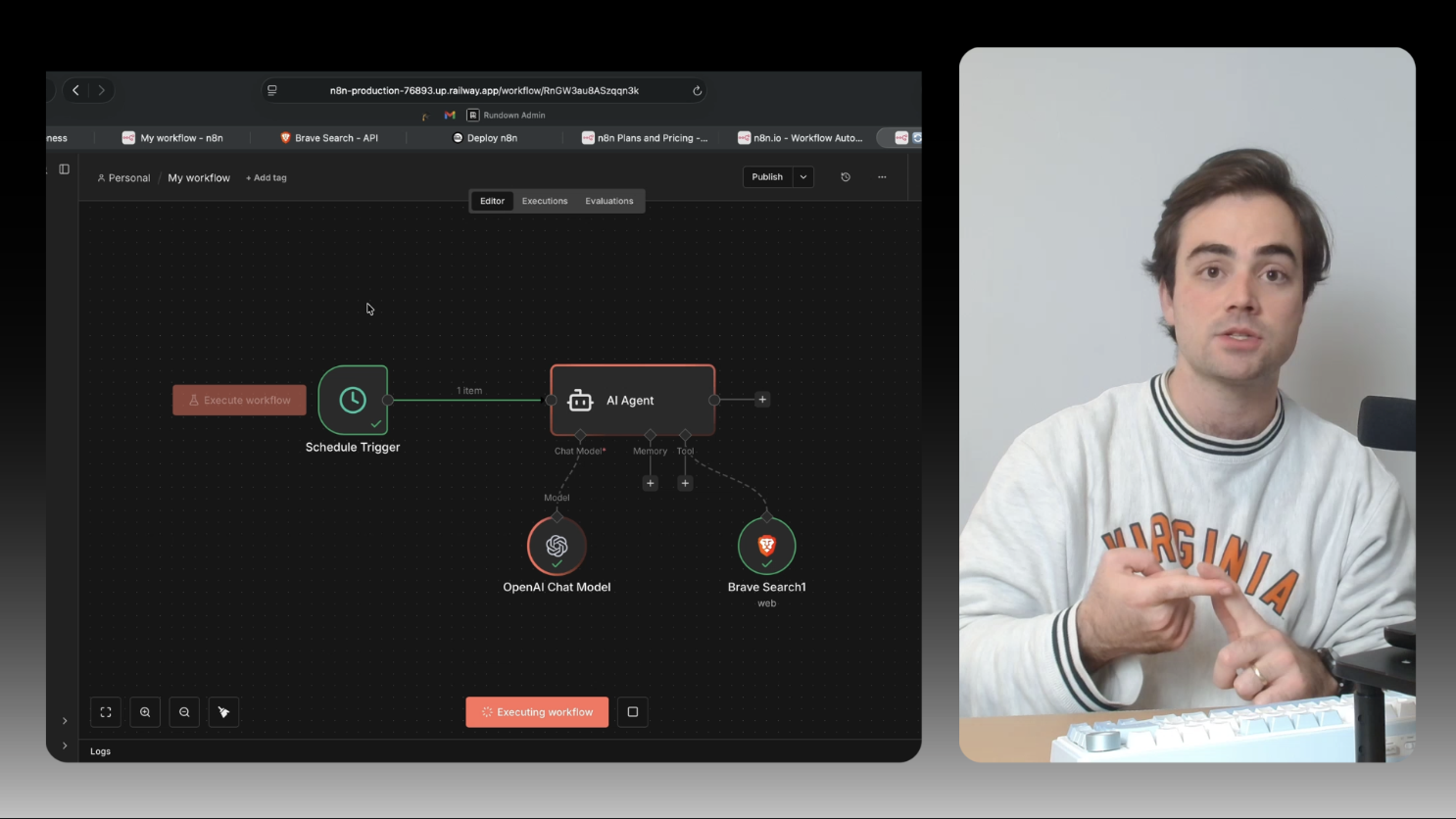
The Rundown In this guide, you will learn to set up your own n8n automation server. You can run thousands of automations per month on n8n with a $5 virtual server. And the best part is you can set it up in under 10 minutes. Who This Is Useful For Anyone paying $20 a month for AI automations Consultants running automations for multiple teams or clients Intermediate n8n users What You Will Build A live, password-protected n8n instance running on your own Railway server. You'll deploy it, log in, and import your first AI-powered automation from a JSON file, all in one session. What You Need to Get Started A Railway account (sign up at railway.com , you get $5 free credit) A GitHub account (Railway uses it to sign in) Claude or ChatGPT (to generate your automation as a JSON file) Optional: API keys for any services you want to connect (OpenAI, Google Sheets, Slack, etc.) Step 1 Go to railway.com/deploy/n8n and click Deploy Now . Sign in with your GitHub account if you haven't already. On the next screen, you'll see a configuration panel with environment variables. You don't need to touch any of these. The defaults work out of the box. Just click Deploy . Railway will spin up two containers: a PostgreSQL database (to store your workflows and credentials) and the n8n application itself. This takes about 2–3 minutes. You'll see both containers appear in your Railway dashboard once they're live. Step 2 Once the deployment finishes, click on the n8n container in your Railway dashboard. You'll see a generated URL near the top of the page (something like n8n-production-xxxx.up.railway.app ). Click it. The first time you visit this URL, n8n will ask you to create an account. Enter your email and choose a password. From this point on, your instance is password-protected. Anyone who visits that URL will hit a login screen. That's it. You now have a fully functional n8n server running at your own URL for a fraction of the cloud price. Pro tip: Make sure you bookmark this URL. It's your new automation dashboard. Step 3 Click Create Workflow in your n8n dashboard. This is where it gets good. Instead of building your automation node by node (which you can absolutely do if you want), you can have Claude or ChatGPT design the entire workflow for you as a JSON file. Here's how: Open Claude or ChatGPT and tell it what you want your automation to do. Be specific about the trigger, the steps, and the output. For example: Build me an n8n workflow that runs every morning at 8am, uses OpenAI to search for the latest AI news, writes a short summary memo, and sends it to my email. The AI will generate a JSON file that defines the entire workflow: nodes, connections, credentials, and configuration. Save that JSON file to your computer. Back in n8n, open your new workflow, click the three dots menu in the top right, and select Import from File . Choose your JSON file. The entire workflow will appear on your canvas, fully wired up and ready to run. All you need to do from here is add your credentials (API keys for OpenAI, Gmail, Slack, or whatever services the workflow uses). Click on any node that needs a credential, hit Create New Credential , paste in your key, and save. n8n stores these permanently so you only do this once per service. Step 4 Click Test Workflow to do a manual run and make sure everything fires correctly. You'll see each node light up green as it executes. If something breaks (and it might on the first try), click the node that failed to see the error message. Usually it's a missing credential or a formatting issue in the prompt. You can always paste the error message into Claude/ChatGPT for troubleshooting. Once it runs clean, toggle the workflow to Active in the top right. It will now run on its own based on whatever trigger you set (schedule, webhook, new row in a spreadsheet, etc.). Your server runs 24/7 on Railway. You don't need to keep a browser tab open. The workflows fire in the background automatically. Going Further You can invite other users to your n8n instance via email. This makes self-hosted n8n great for team projects or client work since everyone shares the same server, the same saved API keys, and the same workflows. You can even spin up separate Railway instances per client if you want full isolation. One thing worth setting up early: a Google Cloud project. If you want to connect Gmail, Google Sheets, Google Calendar, or any Google service, you'll need to create a project in Google Cloud Console, generate a client ID and client secret, and paste those into n8n. It's a one-time setup. Ask Claude for help walking through the steps. For a deeper dive on building AI-powered automations in n8n, check out our AI Automations Course where Nate walks through the full workflow design process from scratch.
Tools

AI training for the future of work.
Get access to all our AI certificate courses, hundreds of real-world AI use cases, live expert-led workshops, an exclusive network of AI early adopters, and more.