Create Killer Thumbnails With This Midjourney Technique
Try Text
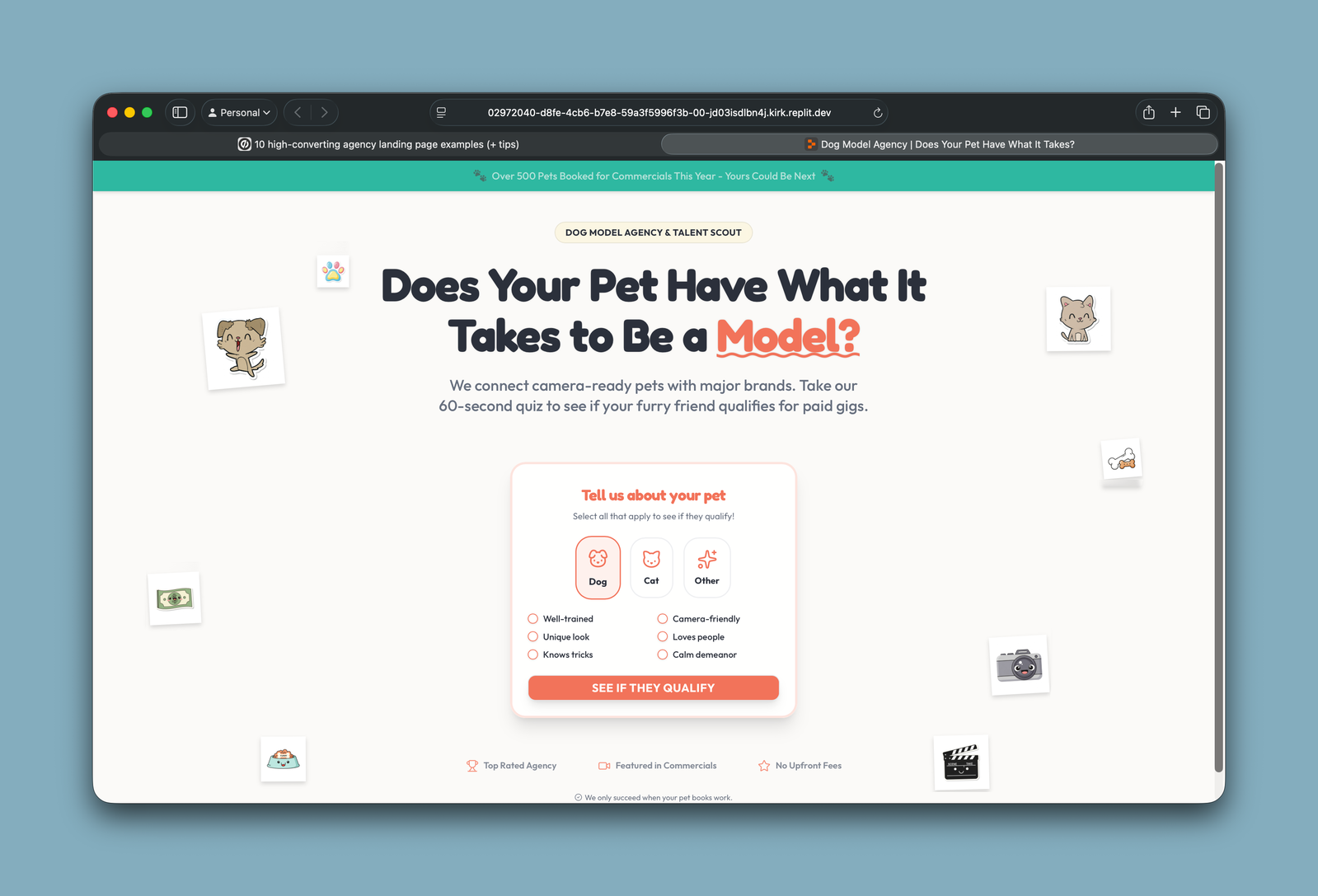
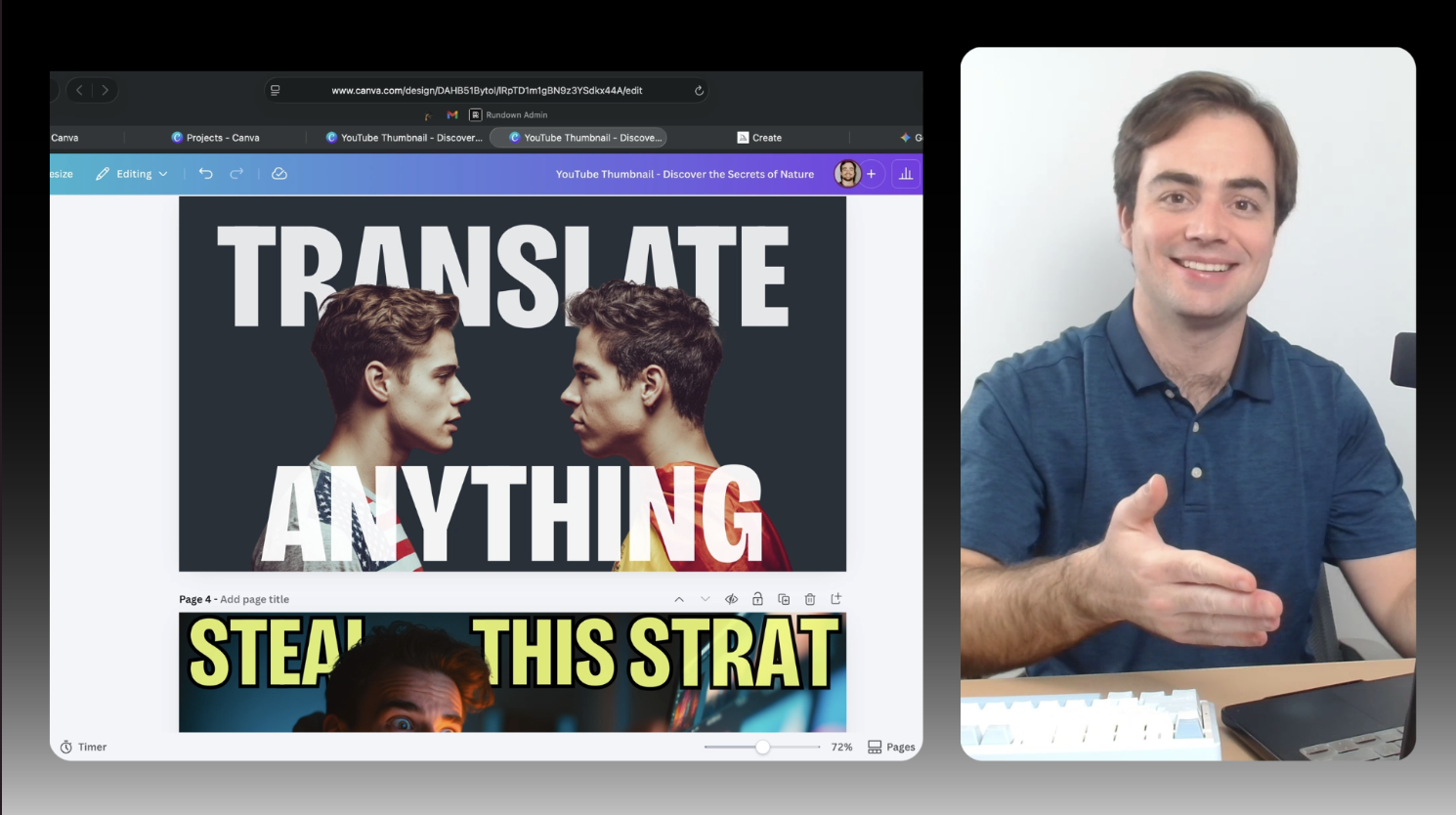
The Rundown In this guide, you will learn a quick prompting + editing system to make thumbnails that stand out, but don’t look like AI slop. Whether it's for your YouTube channel, a blog, or even your social feeds, learning to quickly make good thumbnails pays dividends. Who This Is Useful For YouTube creators and podcasters who need a new thumbnail every week without hiring a designer Bloggers and newsletter writers who need hero images and are tired of stock photos Marketing teams and social managers producing thumbnails at scale without sacrificing quality What You Will Build A repeatable system for generating thumbnail backgrounds in Midjourney, then editing them in Canva (or Photoshop or Figma) with text that actually looks good. You'll go from a content title to a finished thumbnail in about two minutes. What You Need Midjourney account ($10/month starter plan works) Claude or any AI chat assistant (for generating prompts) Canva (free works, Pro for the background remover trick), Photoshop, or Figma A content piece (YouTube video, blog post, social post) that needs a thumbnail Step 1 Get Claude to Generate Your Prompt Concepts Open Claude (or ChatGPT, Gemini, whatever you use) and start a new chat. Paste this prompt: Use the following formula and article title to create four prompt concepts I can put into Midjourney to generate a thumbnail I can add text to later. Make sure there's negative space for the text. Formula: [Person + Expression] + [Action/Prop] + [Setting] + [Lighting] + [Composition with negative space] --ar 16:9 Title: [paste your title here] Claude will give you four scene concepts based on your title. Each one follows the formula so you get real, physical moments instead of abstract AI gradients. If you don't want a person in the thumbnail, strike "Person + Expression" from the formula and tell Claude to come up with concepts without people You can also try asking Claude for concepts without the formula at all. It'll get more creative, and sometimes those unstructured ideas land better If the concepts aren't focusing on the right thing, tell Claude what the main visual hook should be. "The key concept is translation between languages" gets better results than just pasting the title alone Step 2 Generate in Midjourney Go to the Midjourney web app and paste your first prompt into the imagine bar. Load in all four prompts from Claude. You want options. Some will miss, some will surprise you When you see a generation you like, click on it and try Vary Subtle for small tweaks or Vary Strong for bigger changes Keep going until you land on something that feels right. Download the image to your desktop Don't force it. If none of the four concepts are clicking, go back to Claude and ask for four more. Pro tip: Click the “Draft Mode” lightning bolt in the top right of Midjourney to save tokens on generations. Step 3 Add Text in Canva Open Canva and search for a YouTube Thumbnail template (or create a blank one at 1280x720). Drag your Midjourney image in and make it full size. The key principle here is simplicity . Add 1 to 5 words of big, attention-grabbing text. This text should be different from your actual title. Instead, use an action, an outcome, or a reaction. For a video titled "Translate Any Video File Using This Free Local AI Model," the thumbnail text might be "MAKE GLOBAL CONTENT" or "ANY LANGUAGE" or "FREE TOOL." For the text itself: Pick a big, blocky font Go with white or yellow Add a black outline for contrast Bring the opacity down about 5% to blend it with the background If readability is still an issue, put a darker color box behind the text and turn the box transparency way down Pro tip: If the text doesn't fit because there's not enough empty space, go back to Claude and ask for a new Midjourney prompt with more negative space where you want the text. Way easier than trying to force it after the fact. Step 4 The Depth Trick (Background Remover) This is the move that takes your thumbnail from "fine" to "actually looks designed." Take your Midjourney background image in Canva and duplicate it Put the duplicate right on top of the original Hit Background Removal on the top layer (Canva Pro feature) Now you've got three layers: original image on the bottom, text in the middle, foreground cutout on top The text looks like it's sitting between the foreground and background, which adds depth and makes the whole thing look like a human designer made it. Works especially well when your image has a person in it. Put the text behind their head You can't do this with every image. Don't cover your letters too much The goal is to make the viewer's brain think a little harder when it sees the thumbnail. That curiosity is what gets the click Going Further Build a style library. In Midjourney, drag a thumbnail you like into the Style Reference slot. Pin it with the lock icon. Every new generation will match that visual style. Great for keeping a YouTube series or blog consistent.
Tools

AI training for the future of work.
Get access to all our AI certificate courses, hundreds of real-world AI use cases, live expert-led workshops, an exclusive network of AI early adopters, and more.