4 Prompts That Turn Any CSV Into an Excel Dashboard (Claude in Excel Tutorial)
Try Text
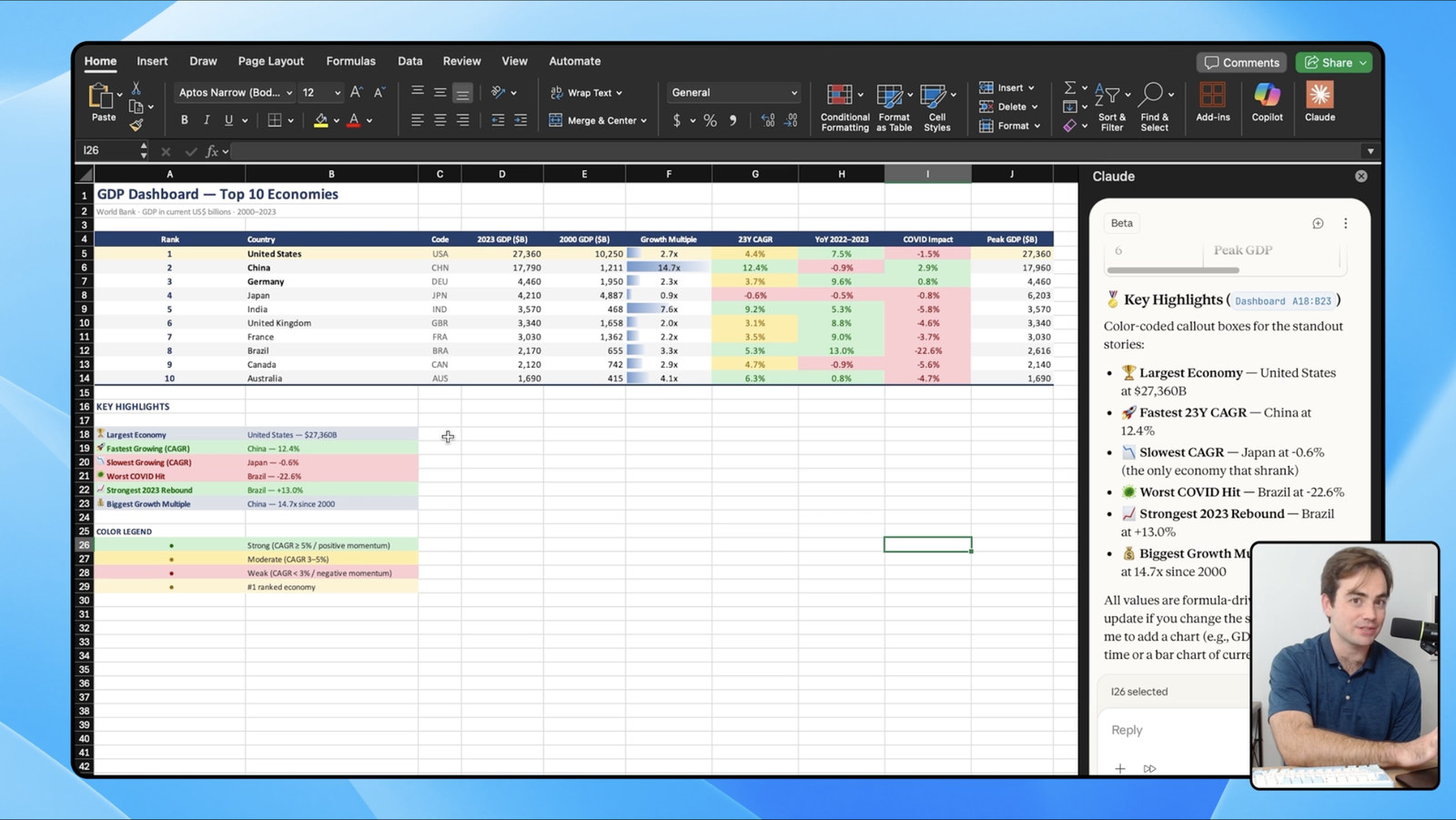
The Rundown In this guide, you will learn 4 copy-paste prompts that turn any raw CSV into a clean, visual dashboard using Claude in Excel. We ran them on World Bank GDP data and NBA player stats to prove they work with anything. Import your data, paste the prompts in order, and let Claude do the rest. Who This Is Useful For Analysts and ops people who spend the first hour of every project just cleaning data Founders and managers who get CSV exports but aren't "Excel people" Students and researchers working with messy public datasets What You Will Build A polished Excel dashboard with summary tables, conditional formatting, and charts built entirely by Claude from a raw CSV. You'll walk away with 4 prompts you can reuse on any dataset. This is what our starting data looked like, pretty messy! What You Need Microsoft 365 with Excel (desktop, web, or Mac) Claude Pro, Max, Team, or Enterprise plan (for the Excel add-in) A CSV file (your own data, a client export, or any public dataset) Step 1 Install the Add-In and Import Your Data Open Excel, click Add-ins in the top ribbon, then Get Add-ins . Search for Claude and install it. The Claude button will appear in your ribbon. Click it and log in. Next, open your CSV in Excel. If it opens as a flat file, save it as a workbook (.xlsx). That's it for setup. Pro tip: Always duplicate your data into a second tab or save a backup copy before you start. Claude can modify cells directly and occasionally overwrites things. Better to have a safety net. Step 2 Explore the Data Paste this prompt into Claude: Look at all the data in this workbook. Tell me what this data is, what each column represents, and flag any problems with the structure or formatting. List the issues. Claude will scan every row and column, then come back with a plain-English breakdown of what your data is, what each column means, and what's wrong with it. This is the most important step. It forces Claude to understand the data before it starts building anything. Everything after this gets better results because Claude already knows what it's working with. If Claude gets confused about something (like abbreviations or date formats), just answer its questions in the chat. A one-line clarification goes a long way You don't need to tell Claude what kind of data this is. It figures that out on its own Step 3 Clean and Structure Paste prompt 2: Fix every issue you just identified. Remove any junk rows or metadata. Format numbers so they're human-readable. Create proper tables with clear headers. Sort by whatever the most important metric is. Claude will remove junk rows, reformat numbers (turning 10250000000000 into "$10.25T"), build a proper table with headers, and sort by the metric that matters most. This step can take a minute or two depending on how much data you have You can watch Claude work in real time as it edits cells If it flags something you disagree with (like renaming a column), just tell it to skip that one and fix the rest Pro tip: Turn on session logging in Claude's settings. It tracks every change Claude makes in a separate sheet, which is helpful if you need to undo something or explain the process to a teammate. Step 4 Build the Dashboard Paste prompt 3: Create a new "Dashboard" tab. Identify the top 3-5 most useful metrics from this data and build a summary table for each. Rank the entries. Use conditional formatting to highlight the top performers in green and the bottom performers in red. Claude creates a new tab and builds summary tables based on whatever metrics it thinks matter most. For GDP data it picked rankings, growth rates, and year-over-year change. For NBA stats it picked scoring leaders, assist leaders, and efficiency. Claude sometimes puts dashboard content in the wrong tab. If that happens, just tell it: "I noticed some dashboard tables ended up in the raw data sheet. Can you move everything to the Dashboard tab?" This step takes about five minutes. You can let it run in the background while you do other things Step 5 Add Charts Paste the last prompt: Add 2-3 charts to the Dashboard tab that tell the story of this data. Pick the chart types that make the most sense (bar, line, scatter, etc). Make them clean and labeled. Claude picks chart types based on the data. For the GDP data it built a line chart showing GDP over time and a bar chart comparing countries. For NBA stats it made a bar chart for top scorers and a scatter plot for points vs assists. Charts are a newer feature in Claude for Excel. They work, but Claude sometimes hard-codes source data and then hides the rows, which breaks the chart. If your charts look blank, unhide the rows above or below them You may need to drag charts around or resize them. The data is right, the layout just needs a nudge sometimes Pro tip: If you want to keep using this dashboard every month or quarter, paste one more prompt: Turn this dashboard into a reusable template. Replace the data with placeholder labels so I can swap in new data next month. Now you've got a template workbook. Just drop in fresh data and run the prompts again. Going Further Try it with your own data. Export a CSV from your CRM, accounting tool, ad platform, or whatever you use. Run the same 4 prompts. No changes needed. Build template workbooks for your team. Monthly reports, client dashboards, inventory tracking. Have Claude build the dashboard once, convert it to a template, and reuse it every cycle.
Tools

AI training for the future of work.
Get access to all our AI certificate courses, hundreds of real-world AI use cases, live expert-led workshops, an exclusive network of AI early adopters, and more.